

 EMMA FOR SALESFORCE · GUIDE
Getting started.
Bring Emma and Salesforce together.
Here’s where to start.
Emma for Salesforce is a native app installed in your Salesforce org. Send Salesforce data to Emma for targeted campaigns, then bring audience details and email engagement back alongside your customer records.
Before you begin
- A Salesforce org and an administrator to set up the integration
- An Emma account, with your account ID and API keys ready
See how it fits together.
Watch the overview, then follow the setup path below.
Emma handles your email campaigns. Beaufort 12 connects them to Salesforce.
Your setup path.
Start with the connection. Then choose the data you want to send.
- 1
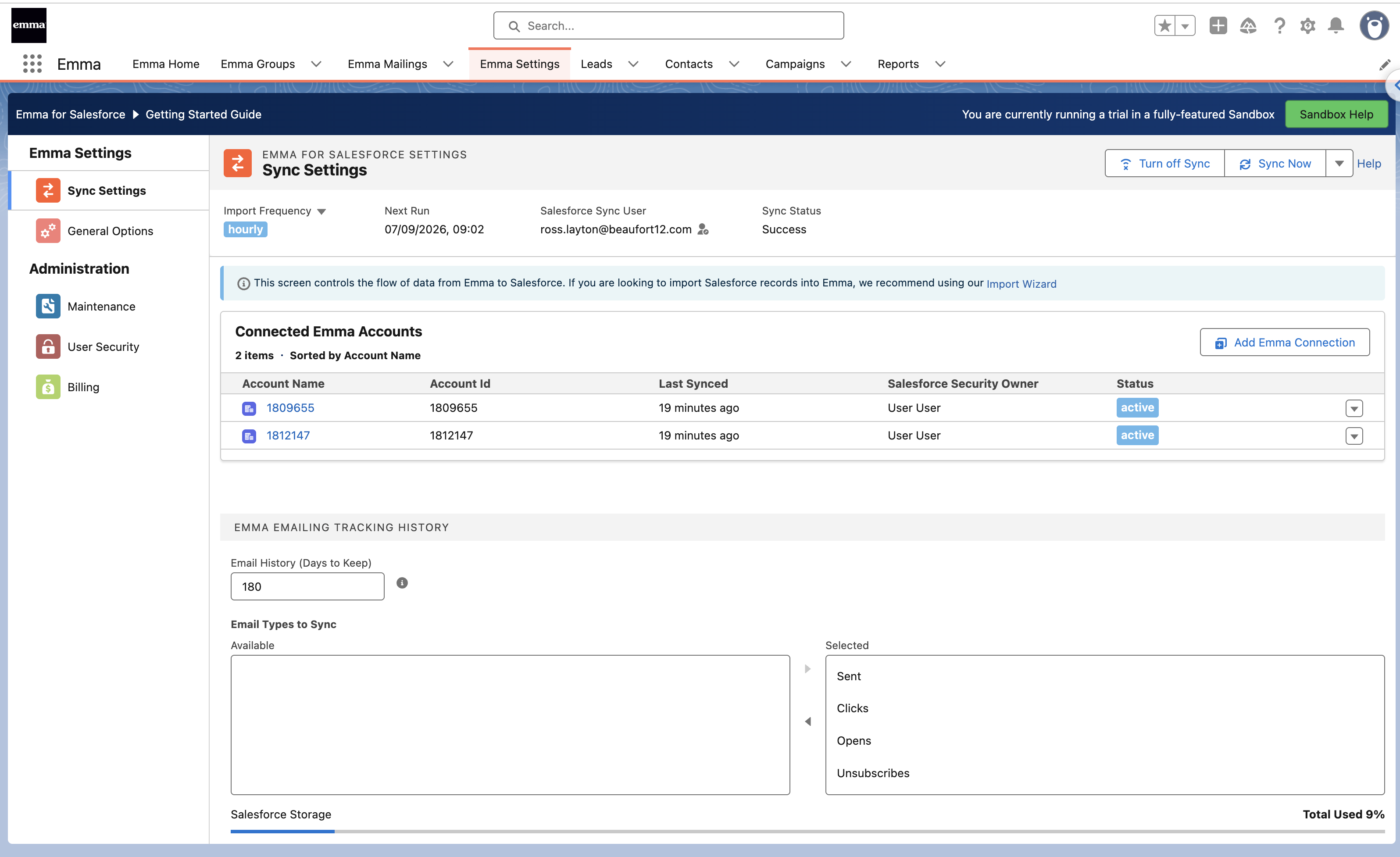
Install and connect Emma
Install the app in Salesforce, then connect your Emma account using its account ID, public key and private key.
Installation&setupUsing Emma HQ? Connect a subaccount, rather than the parent account. - 2
Build your first import
Choose a Salesforce report, list view, campaign or SOQL query. Map your fields to Emma, then run the import once or on a schedule.
Open the Import Wizard guideWorks with any Salesforce object. Available import sources depend on your Salesforce edition.
- 3
See your audience in Salesforce
Explore membership details and mailing history alongside your records. Use the stored data in Salesforce reports and dashboards.
Try it in your own org.
14-day trial
Explore the full feature set in your production environment.
30 days to test
For testing, with extensions up to 90 days available on request.
Common questions
How does Emma for Salesforce secure my data?
What do the fields on the Emma objects in Salesforce mean?
Does Beaufort 12 have a Data Processing Addendum (DPA)?
Can you set up Emma for Salesforce for me?
Why do I have to pay for Emma - EM
How do I buy?
How much does the integration cost?
How can I work with Salesforce reports?
How do I migrate from the old Emma integration?
Do you offer product demos?
How do I get a trial extension?
Installation & setup
Let’s get your accounts connected.
