


See which Emma accounts a Contact or Lead belongs to.
Add or remove memberships and update Emma groups from the record page.
Open Member Detail for groups, activity, audit, and Emma fields.
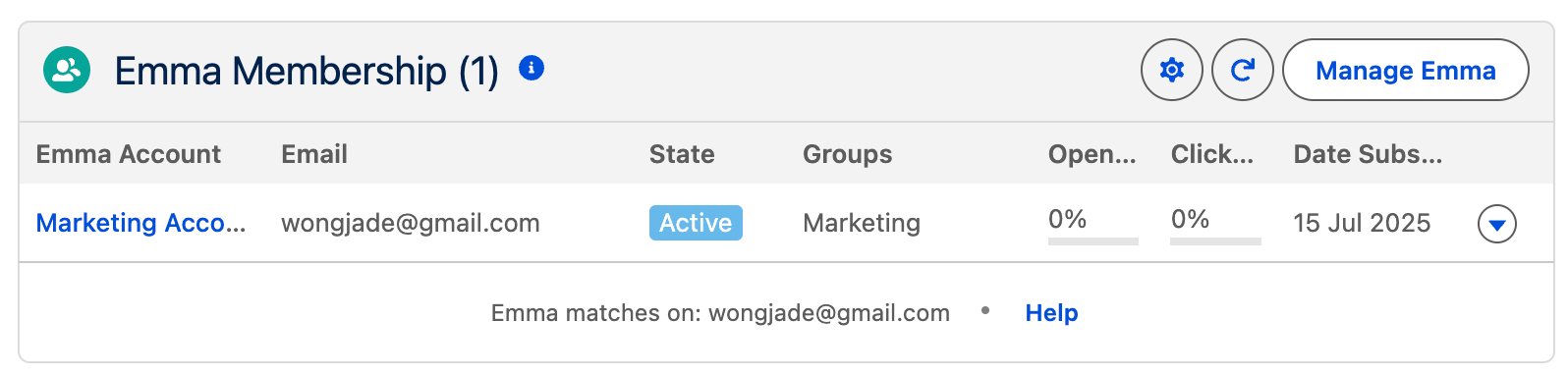
The Emma Membership Lightning component shows Emma audience memberships on Contact and Lead record pages. Each row is one connected Emma account. From the card you can open Member Detail, add someone to Emma, or manage groups. The package does not place this component automatically — add it in Lightning App Builder.
Only Salesforce Lightning users can view the Emma Membership component.
Member detail
From the Emma Membership card, click a membership row to open Member Detail. The modal shows open and click rates, subscribe dates, and status for that Emma account. Tabs cover Groups, Emma Activity, Emma Audit (import source, consent, and who last linked the record), and Emma Fields (custom field values from Emma).

Adding the Emma Membership component
Within Salesforce Lightning, navigate to a Salesforce contact or lead record.
Click on the Setup cog on the top right.
Select Edit page.
On the left side pane, search components for Emma Membership.
Once found, drag and drop Emma Membership onto the page.
Click Save.
The component only works on objects that have at least one email field, and only in Lightning Experience. If no email field is present, the card shows a setup message with a link to this guide.
Once added, the card lists memberships for the record across connected Emma accounts. Groups load shortly after the table appears. Use Add to Emma when the person is not yet a member.
Manage Emma

Manage Emma opens from the card when you add someone to Emma or manage an existing membership. Step 1 chooses the Emma account and adds or removes membership. Step 2 lets you select Emma groups for that member. If no Emma account is connected yet, use the help link to connect Emma in Sync Settings first.
