Who this guide is for: Salesforce admins and marketing operations leads whose team designs and sends email in Emma, keeps campaign assets in Dropbox and reports in Salesforce, and wants an Emma Salesforce integration that ties the three together.
- You'll need: Salesforce admin access (Professional, Enterprise, Performance or Unlimited edition, Classic or Lightning), an Emma account with API credentials (account or subaccount ID, public key, private key), a Dropbox account containing your campaign assets, Dropbox for Salesforce and Emma for Salesforce installed via the Beaufort 12 setup guides
- Time: 45-60 minutes for first-time setup; 10 minutes per campaign afterwards
- At the end: A repeatable workflow where campaign assets live on the Salesforce Campaign record, the Emma audience is built from Salesforce campaign membership, and sends, opens, clicks and unsubscribes appear back on your contacts and leads.
Most marketing teams run a campaign across three tools that never quite meet. The email is designed in Emma, the images and copy docs live in Dropbox, and the results are supposed to end up in Salesforce. Usually they do, eventually, after someone copies them across by hand. Emma for Salesforce and Dropbox for Salesforce each connect their platform to Salesforce, which becomes the meeting point. By the end of this guide you will have assets attached to Salesforce Campaign records, an Emma audience that fills itself from campaign membership, and Emma engagement reportable in Salesforce. Emma still designs and sends. Salesforce stays the system of record. Dropbox stays the asset library.
How the Emma Salesforce integration and Dropbox for Salesforce work together

It helps to be clear about what travels where. From Salesforce to Emma, the Import Wizard sends contacts and leads selected from a report, campaign, list view or SOQL query, along with any mapped Salesforce fields you want for personalisation. Imports run once or on a schedule, as often as hourly. From Emma back to Salesforce come audience and group membership, email activity (sends, opens and clicks) stored as records on contacts and leads, and unsubscribe status, so both systems agree on who has opted out.
Dropbox for Salesforce plays a different role. It keeps your campaign assets in Dropbox and makes them accessible from the Salesforce Campaign and Account records they belong to. The designer building the email in Emma finds the approved files on the same record where the audience and the results will later sit.
Two things the setup does not do, so you can plan around them: there is no direct Dropbox-to-Emma connection, and there is no Emma template editor inside Salesforce. Salesforce is the hub where both meet. Data flows only between Salesforce, Emma and Dropbox. Beaufort 12 does not independently access or store your customer data, and a pre-signed Data Processing Addendum is incorporated into its terms.
Step 1: Attach your campaign assets to Salesforce records with Dropbox for Salesforce
If you have not yet installed and connected the app, set up Dropbox for Salesforce first. This section assumes the connection is working.
- Create a Dropbox folder for the campaign (or one per brand or account) and place the images, copy docs and brand guidelines inside it.
- Open the Campaign record in Salesforce and link the campaign's Dropbox folder to it.
- Open the Account record for evergreen assets such as logos and brand guidelines, and link those there.
- Name files with the campaign name and asset type, for example SpringLaunch-HeroImage-FINAL, so the designer can spot the approved version at a glance.
The payoff is that the approved assets are visible from the exact Campaign record that will later hold the audience membership and the Emma results. Nothing needs to be re-uploaded into Salesforce. Revisions made in Dropbox show up where the campaign lives.
Step 2: Install and connect Emma for Salesforce
- Install the package from the Emma for Salesforce setup guide into your production, sandbox or developer org.
- Assign the Emma Admin permission set to yourself and to the Sync User, and Emma Standard to marketers who only need to view activity.
- Generate your Emma API credentials in Emma: Account ID (or the subaccount ID if you use Emma HQ), public key and private key.
- Open the Emma admin app from the App Launcher, go to the Emma settings tab and click Connect.
- Enter the API details and wait for the on-screen confirmation.
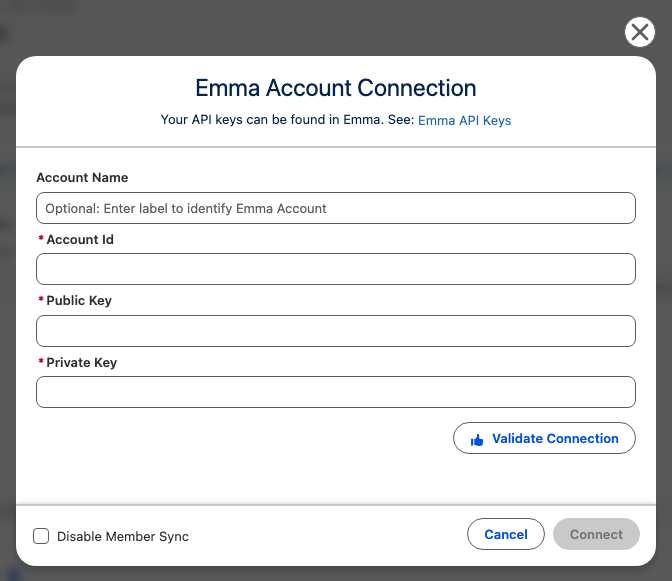
Installing in production starts a free 14-day trial, and a sandbox install gives 30 days, extendable on request. Confirm current terms on the setup page. One thing that catches a lot of people out: the app only appears in the App Launcher once a permission set is assigned, so if you cannot find it, that is almost always why.
Emma HQ accounts connect through a subaccount ID only, never the parent account ID. You can connect more than one Emma account or subaccount to the same org, which suits agencies and multi-brand teams. The package installs its own custom objects (Emma account, Emma audience, Emma group, Emma mailing, Field mapping and a few others) and is self-contained, so it does not alter your standard objects.
Step 3: Build the Emma audience from your Salesforce Campaign
- Add the target contacts and leads as members of the Salesforce Campaign you linked assets to in Step 1.
- Go to the Emma tab, open the Emma account you connected and click Import Wizard.
- Select Salesforce campaign as the import source and choose the campaign.
- Choose the destination Emma audience and group.
- Run the import once for a one-off send, or enable the Schedule and pick the days and run times so new members flow across automatically.
Scheduled imports can run as often as every hour. If your segmentation is more involved than campaign membership, the same wizard accepts a report, list view or SOQL query instead; available sources depend on your Salesforce edition. For a fully automated version, the Flow actions that ship with the app can add or remove contacts and leads from Emma groups, or start an Import Wizard job, whenever a campaign member status changes.
Step 4: Map Salesforce fields to Emma for personalisation
- Open the Emma tab and click Field mappings.
- Click Edit to unlock the page.
- Click New field (or the dropdown on an existing Emma custom field) and choose the Salesforce contact or lead field, such as first name, account name, region or renewal date.
- Leave the direction as Salesforce to Emma for anything Salesforce owns, and click Select.
- Click Save, then enable Emma field change workflows under General Settings so Salesforce changes trigger the sync.
Each field mapping can run Salesforce to Emma, Emma to Salesforce, or both. There is no conflict resolution between directions. Emma to Salesforce mappings update Salesforce every hour by default, and the Import Wizard updates Emma on whatever schedule you set, so a field mapped both ways can be overwritten from either side. Reserve bi-directional mappings for fields genuinely edited in both places, such as preferences captured through an Emma signup form.
Expect up to an hour before newly mapped values appear in Emma, or click Retrospective sync to bulk refresh. Keep the brand guidelines doc linked on the Account record in Dropbox as the reference for tone and for naming personalisation fields consistently.
Unsure which direction each field should sync, or which Salesforce fields are worth mapping at all? The field mappings guide walks through the common choices and the cases where bi-directional mapping makes sense.
Step 5: Design and send the campaign in Emma using your Dropbox assets
- Open the Salesforce Campaign record and locate the linked Dropbox folder with the approved images and copy.
- Log in to Emma and build the email with Emma's editor and templates.
- Upload the images from the Dropbox folder and paste the approved copy.
- Insert the mapped custom fields as personalisation tags.
- Select the Emma audience or group populated in Step 3, then send or schedule from Emma.
- Save the final rendered email or a PDF proof back into the campaign's Dropbox folder.
Emma does the sending here. Salesforce does not send the email, and there is no Emma editor inside Salesforce. Keeping Dropbox as the single source for assets means a last-minute image change happens in one place rather than forking across inboxes. Saving the proof back to the folder gives the Campaign record a complete history from brief to send.
Step 6: Review results and unsubscribes in Salesforce
- Decide in Emma Settings whether email activity is stored as Salesforce records on contacts and leads or only displayed through the Lightning email activity component.
- Add the email tracking component to your contact and lead page layouts if your team wants activity visible on the record.
- Build a Salesforce report on sends, opens and clicks, filtered to the campaign.
- Confirm unsubscribes are syncing and configure how Salesforce email opt-out should behave with Emma.
- Create a Flow that removes a contact from the Emma group when their campaign member status changes to Responded.
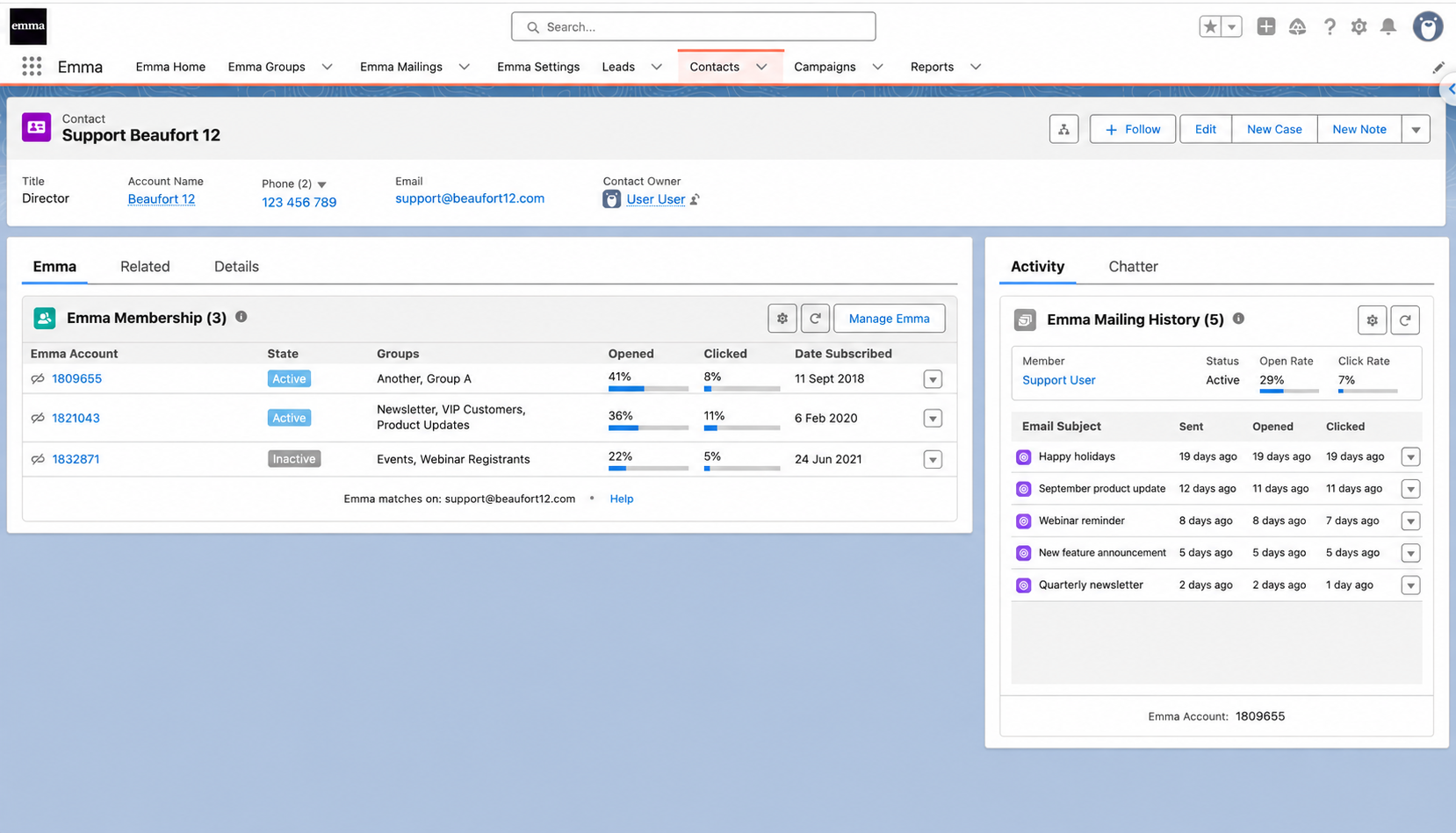
Choose stored records if you want results in reports, dashboards and campaign ROI calculations. The Lightning component shows activity without storing it, and that activity cannot be reported on. With results filtered to the campaign, opens and clicks sit on the same record as the Dropbox assets and member list. Synced unsubscribes stop sales re-adding people who opted out, and the Responded Flow avoids resending to someone who already acted. IBM's State of Salesforce research points to better outcomes for organisations that connect external data into Salesforce rather than leaving it in silos, which is essentially what this setup does for your email programme.
Troubleshooting the Emma Salesforce integration
Why can't I see the Emma app in the App Launcher?
The app only appears once an Emma permission set is assigned to your user. The Sync User needs Emma Admin specifically.
- In Setup, search for Permission Sets.
- Assign Emma Admin to admins and the Sync User, and Emma Standard to everyone else.
Why won't my Emma HQ account connect?
Emma HQ accounts connect through a subaccount ID, never the top-level parent account ID. Check that the public and private keys match the subaccount you are connecting, and generate a new set if the private key was never recorded.
Why aren't new campaign members appearing in my Emma audience?
The most common cause is an Import Wizard job that ran once rather than on a schedule. Available sources also vary by Salesforce edition, so confirm the campaign source is supported in yours.
- Open the Import Wizard and check the schedule is enabled with the right days and times.
- Confirm the source still points to the correct campaign.
- Check Maintenance Logs in Emma Settings if the import reports success but contacts are missing.
Why is a field value in Emma different from Salesforce?
Bi-directional mappings have no conflict resolution, so the hourly sync from Emma may have overwritten a Salesforce value. Switch that field to one-way Salesforce to Emma and run a Retrospective sync to restore the Salesforce values in Emma.
Why can't I report on opens and clicks?
Activity is being displayed through the Lightning email activity component rather than stored as records. Enable stored email tracking records in Emma Settings, and the activity becomes available to Salesforce reports and dashboards.
Why can't my team see the campaign assets on the Salesforce record?
Either Dropbox for Salesforce is not connected for that user, or the folder has not been linked to the Campaign record. Revisit the Dropbox for Salesforce setup guide to check the user's connection, then link the folder from the record.
Who do I contact for help?
Emma for Salesforce is a self-service product with email-based support covering how the product works and how to fix it when it does not. Start with the guides and FAQ in the support hub. For hands-on configuration, data cleanup or training, Beaufort 12 recommends one of its Salesforce consulting partners.
Get Started with Emma for Salesforce
Once this is in place, your campaign assets sit on the Campaign record through Dropbox for Salesforce, your Emma audiences fill from Salesforce campaign membership, and Emma results are reportable in Salesforce alongside everything else. The Emma for Salesforce installation and setup guide walks you through installing the package and starting the free trial (check the live page for current trial terms), and if you want to try the Import Wizard and field mappings before touching production, install in a sandbox first. It is an afternoon of setup, and it removes the copy-paste between the three tools for every campaign that follows.
