

 DROPBOX FOR SALESFORCE · GUIDE
Workspaces & team folders.
A shared structure for your files.
Set up your workspace, manage access and keep teams organised.
Overview
- A workspace is the root folder in Dropbox where Salesforce files are organised.
- Inside a workspace, files are sorted automatically into subfolders by object type and then by record name.
- An org can have more than one workspace.
- Each user chooses which workspace they are currently working in. Workspaces can be a regular Dropbox folder or a Dropbox Business Team Folder.
- Team Folders must be selected from existing folders, they cannot be created from Salesforce.
- Removing a workspace never deletes anything from Dropbox.
What a workspace is
A workspace points at one root folder in your Dropbox. Everything the integration stores goes underneath it, using this structure:
{workspace root} / {Object Label Plural} / {Record Name}
So a workspace called Salesforce Documents produces paths like /Salesforce Documents/Accounts/Acme Corp and /Salesforce Documents/Opportunities/Acme Renewal.
You do not create those subfolders yourself. They are created the first time somebody opens the Dropbox File Manager on a record.
Initial Setup
If no workspace exists yet, the Dropbox File Manager shows Dropbox Workspace Setup Required with an Initial Setup button. That opens the setup wizard.
The wizard offers two ways to establish a workspace.
Create New Folder. Enter a folder name and the integration creates it at the root of your Dropbox. The default name is Salesforce Documents. The name cannot be blank, cannot exceed 255 characters, and cannot contain any of these characters: forward slash, backslash, less than, greater than, colon, double quote, pipe, question mark or asterisk.
Select Existing Folder. Choose Browse Folders to pick a folder you already have. The browser lets you search by name and filter by All, Team Folders, Shared or Personal. Team Folders and shared folders are badged so you can tell them apart. This is the only route to using a Team Folder.
When setup finishes you see Setup Complete and a Get Started button, and the File Manager reloads.
Regular folders and Team Folders
Team Folders are usually the right choice for a Dropbox Business customer, because access is managed centrally in Dropbox rather than person by person. If your Dropbox account is a Business account, the setup wizard hints at this.
Behind the scenes, a Team Folder workspace is addressed using a Dropbox namespace rather than a normal path. The integration handles this automatically, but it explains why paths inside a Team Folder workspace look different from paths in a personal folder.
Managing multiple workspaces
Multiple workspaces are useful when different teams want their files kept separate, for example one root for Sales and another for Marketing.
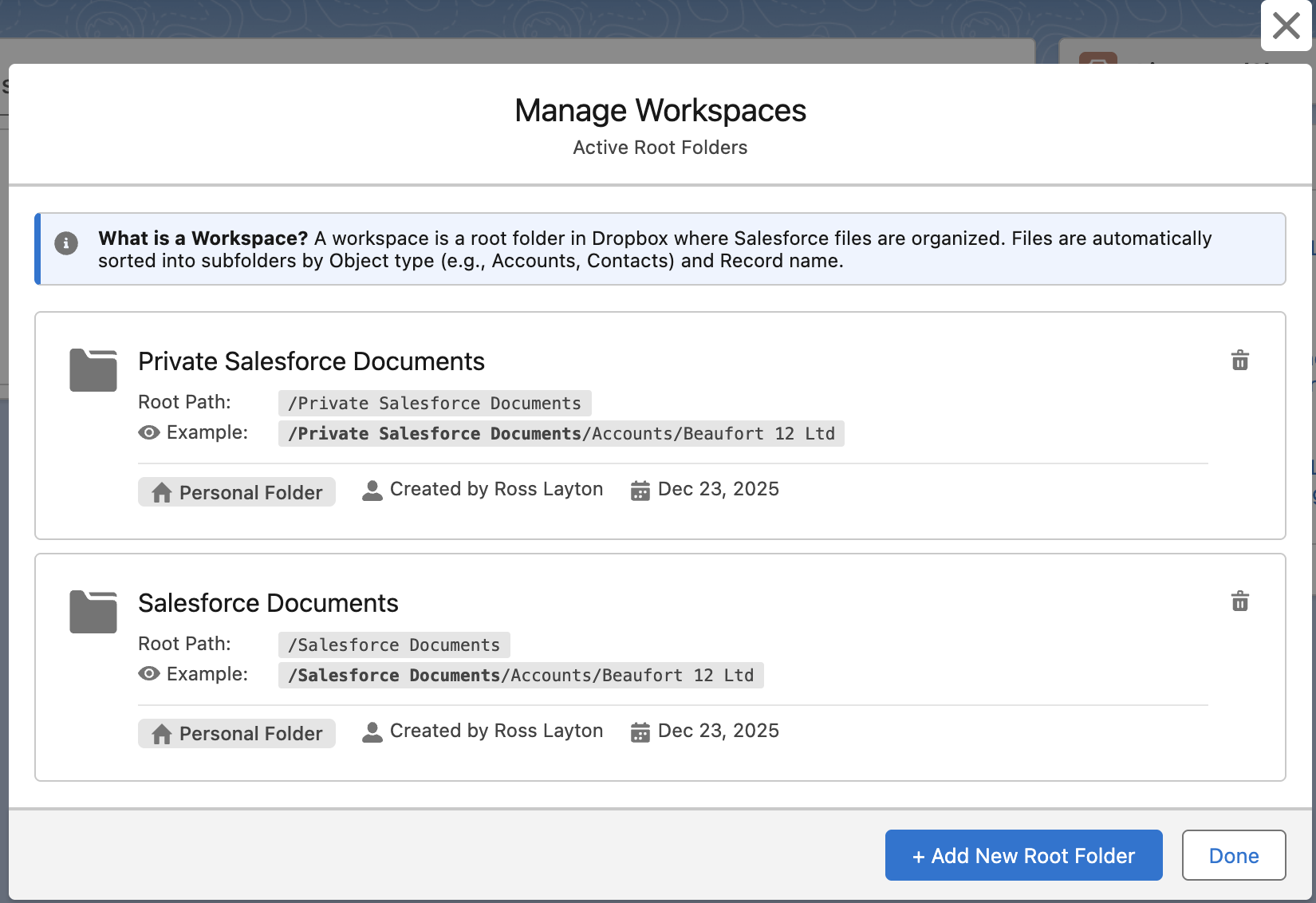
Administrators with the Dropbox Admin permission can open Manage Workspaces from the actions menu in the Dropbox File Manager. The list shows, for each workspace: its name, whether it is the default, its root path, an example of the folder structure it produces, whether it is a Team Folder or a personal folder, and who created it.
To add a workspace, choose Add New Root Folder. The options are the same as the setup wizard: create a new folder, or browse and select an existing one. Workspace names must be unique.
To remove a workspace, use the delete icon on the workspace tile. You are asked to confirm, and the confirmation makes the consequences explicit: files stored under that root path will no longer appear in Salesforce, and no files are deleted from Dropbox.
Removing a workspace deletes the folder mapping records that connect Salesforce records to Dropbox folders. The Dropbox folders and every file in them remain untouched. If you add the same root folder back later, mappings are rebuilt as users open records.
Switching workspace
When more than one workspace exists, the Dropbox File Manager shows a Workspace picker in its header. Changing it switches the folder you are browsing and is remembered for you personally, so it does not affect anyone else.
Your selection is stored per user. If the workspace you had selected is later removed, you fall back to the org default workspace, or to the first workspace alphabetically if no default is set.
Common questions
Do I need more than one workspace?
Most orgs do not. One root folder keeps the structure simple and predictable.
Can two users be in different workspaces at the same time?
Yes. The active workspace is per user.
What happens to files if I remove a workspace by mistake?
Nothing is lost in Dropbox. Add the root folder back as a workspace and the mappings rebuild as records are opened.
Using Dropbox on a Record
Get more done without leaving the record.
