

 DROPBOX FOR SALESFORCE · GUIDE
Your records. Your files.
Get more done without leaving the record.
Connect, upload, find and share your Dropbox files in Salesforce.
Overview
- Connecting your Dropbox account
- Uploading files
- Browsing and previewing
- Downloading and sharing
- Creating and renaming folders
- Deleting files
- When you cannot see any files
- Managing your connection
- Switching workspace
Interactive Demo
Click the overview demo below to see how the application works.
Connecting your Dropbox account
Open a record that has the Dropbox File Manager on it. If you are not connected, you are prompted to connect. You are taken to Dropbox, you sign in and authorise, and Dropbox returns you to Salesforce with the file list loaded.
You need one of the two Dropbox permission sets first. If you cannot see the component at all, ask your administrator to assign one.
Beaufort 12 never sees your Dropbox password. Authentication happens at Dropbox and only a token is returned to Salesforce.
One thing to understand up front
Each person connects their own Dropbox account. There is no single shared connection for the whole company.
This has a direct consequence: the Dropbox folder for a record belongs to whoever opened that record first. Colleagues see that folder only if it has been shared with them in Dropbox. If your team hits this regularly, your administrator should switch the workspace to a Dropbox Business Team Folder, which puts access management in Dropbox for everyone at once.
Uploading files
Drag files from your desktop onto the file list, or use the upload control and select them. You can select several at once, and a progress bar shows while they transfer.
Files up to 150 MB are supported. Larger files are sent in segments automatically, so nothing is different from your side.
Files land in whichever folder you are currently viewing. If you have navigated into a subfolder, that is where they go.
Browsing and previewing
Breadcrumbs at the top show where you are, and you can click into any subfolder. The list loads 50 items at a time, so scroll to the bottom to load more. You can search, filter and sort, and search matches names in the folder you are viewing.
Anything else can be downloaded or opened in Dropbox, it just will not render in the preview window.
The preview also names the folder owner, both the Salesforce user who created it and the Dropbox account it belongs to. That is useful when working out who to ask for access.
Click a file to preview it. These types display in place:

Downloading and sharing
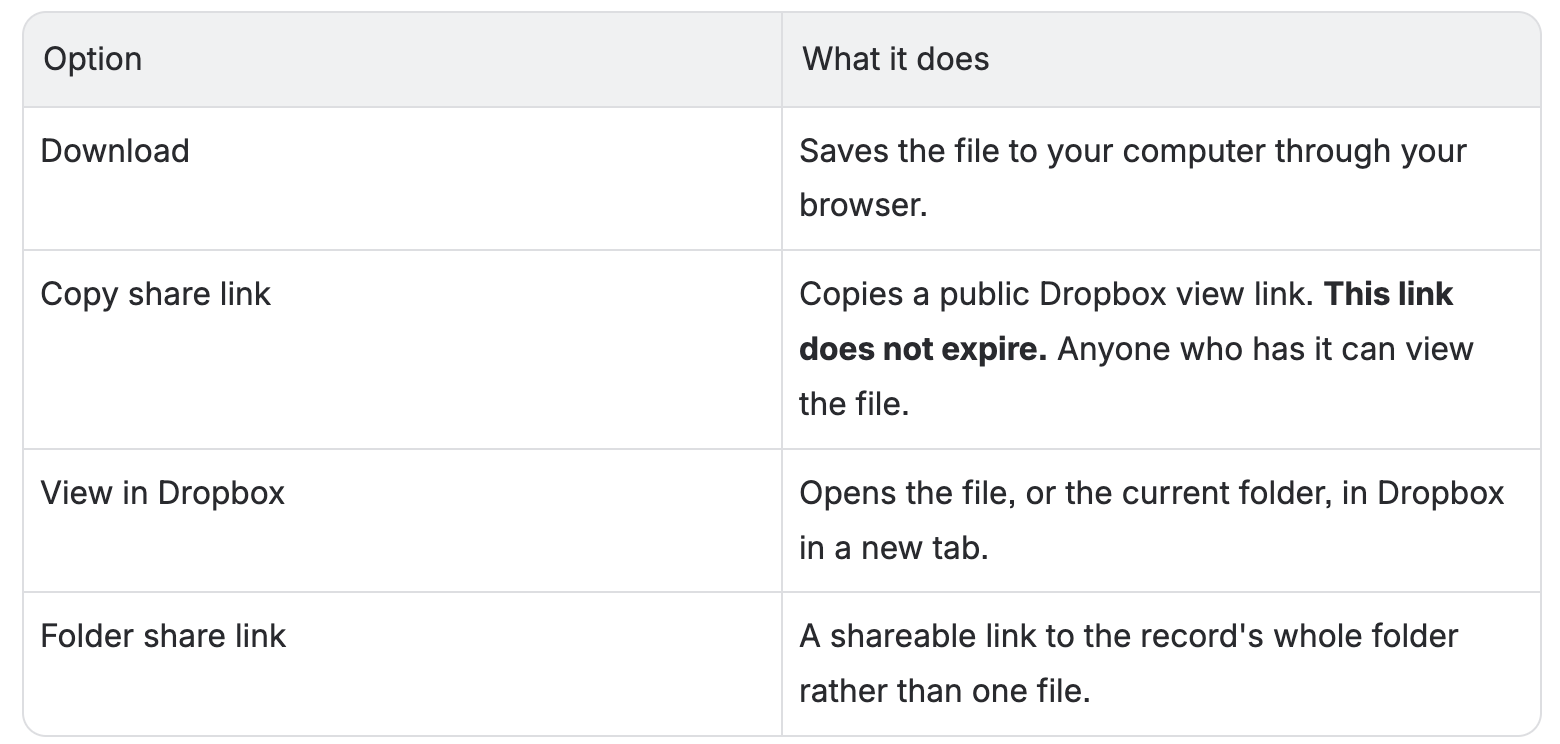
A shorter-lived option exists through Flow: a temporary download link valid for 4 hours. Use that when a system needs to fetch a file, rather than when a person needs to click something. Ask your administrator, or see the automation guide.
Treat share links as you would any public URL. If you no longer want one to work, remove it in Dropbox.
Creating and renaming folders
Create subfolders inside the record's folder using the new folder action. This is how teams impose consistent structure, for example Contracts and Invoices under every Account. Your administrator can automate that so it happens on every new record.
You can also rename the record's folder. If the name clashes with an existing folder, you are offered an alternative.
Renaming individual files, and moving or copying items between records, is available through Flow rather than the file list. Ask your administrator if you need it.
Deleting files
Delete removes the file or folder from Dropbox. It is not a Salesforce-only action and it cannot be undone from Salesforce.
If the file is recoverable it will be in your Dropbox deleted files, subject to your Dropbox plan's retention. Recover it in Dropbox.
When you cannot see any files
Salesforce record access and Dropbox folder access are separate things. You can have full access to an Account in Salesforce and still not see its Dropbox folder, because that folder lives in a colleague's Dropbox account and has not been shared with you.
When that happens you see a message naming the owner, along the lines of This folder is private. Request access from Jane Smith.
Requesting access
Choose Request Access. The button changes to Request Sent. A Dropbox Access Request record is saved in Salesforce. The folder owner receives a Salesforce bell/mobile notification and an email with a link to review the request in Salesforce.
The request records who asked, who can approve it, the Salesforce record and folder, and its status. Request Sent stays disabled while the request is pending or processing, even after you reload or leave the page and return. Asking again while a request is open does not create another request or send another notification.
You are notified when the owner approves or declines. After approval, reopen the record or choose Reload; the shared folder is added to your Dropbox automatically when needed. If prompted, accept the Dropbox email invitation and reload. If the owner declines, you can see the reason if one was provided and choose Request again. Desktop file managers update automatically when a decision arrives; refresh in the Salesforce mobile app. You may also see one of these connection or access messages:

Granting access when you are the owner
- Open the Salesforce notification or the email's review link to see who is requesting access and the folder path, for example
/Salesforce Documents/Accounts/Acme Corp. You can also open the Salesforce record and choose Review in the requested-access banner. - Check the requester, record and folder on the approval card.
- Choose Grant edit access so they can upload and delete, or Grant view access for read-only access. Salesforce shares the folder through Dropbox and adds the requester at the chosen level. To refuse access, choose Decline, optionally enter a reason, then choose Confirm decline. The requester is notified of the outcome.
If Dropbox needs time to share the folder, the request shows Processing until it finishes. If sharing fails, the card explains the error and the request remains Pending so you can retry or decline. Only the designated approver can decide the request; Dropbox permissions and team sharing policies still apply.
If someone needs ongoing access to many records, share the workspace root folder once instead of handling requests folder by folder. That grants everything beneath it in a single step.
Managing your connection
Open Connection Settings from the actions menu. It shows your Dropbox name and email, the account type, when you connected, and your Dropbox storage usage with a progress bar. The bar turns amber above 90 per cent and red above 95 per cent, and that is your Dropbox allocation, not a Salesforce limit.
Your connection renews itself automatically, so you will rarely need to reconnect. If renewal fails, usually because the app was revoked in Dropbox or your Dropbox credentials changed, you will be asked to reconnect. That takes a few seconds and does not affect your files.
Disconnecting
Disconnect from Dropbox in Connection Settings takes effect immediately, with no confirmation prompt. It revokes the connection with Dropbox, deletes your stored credentials, and deletes the folder mapping records you created.
It does not delete anything from Dropbox. If you reconnect, mappings are rebuilt as you open records.
Switching workspace
If your org has more than one Dropbox workspace, a Workspace picker appears in the header. Switching changes which root folder you are working under. Your choice is remembered for you and does not affect anyone else.
Common questions
Where do my files actually live?
In Dropbox. They are never copied into Salesforce and do not use Salesforce file storage.
What is the largest file I can upload?
150 MB.
Why can I not preview my Word document?
Only the types listed above render in place.
Does a share link expire?
No. Only temporary download links expire, after 4 hours.
Does disconnecting delete my files?
No. Files always stay in Dropbox.
Why can I see the record but not its files?
Salesforce and Dropbox permissions are independent. See the section above.
Workspaces and Team Folders
A shared structure for your files.
