

 DROPBOX FOR SALESFORCE · GUIDE
A clearer path to a solution.
Troubleshooting Dropbox for Salesforce.
Work through common connection, file and access issues.
Start here: the three-question triage
Almost every report resolves against one of three questions. Ask them in this order.
- Does the user have a Dropbox permission set? No permission set means the component will not work regardless of profile. This is the most common cause and the fastest to check.
- Has the user connected their own Dropbox account? Connections are per user. Check Connection Settings in the file manager.
- Is this a Dropbox permissions problem rather than a Salesforce one? If the folder exists but belongs to a colleague's Dropbox account and has not been shared, nothing in Salesforce will fix it.
If all three are clear, continue below.
A user sees no Dropbox component at all
Cause: no permission set, or the component is not on the page layout.
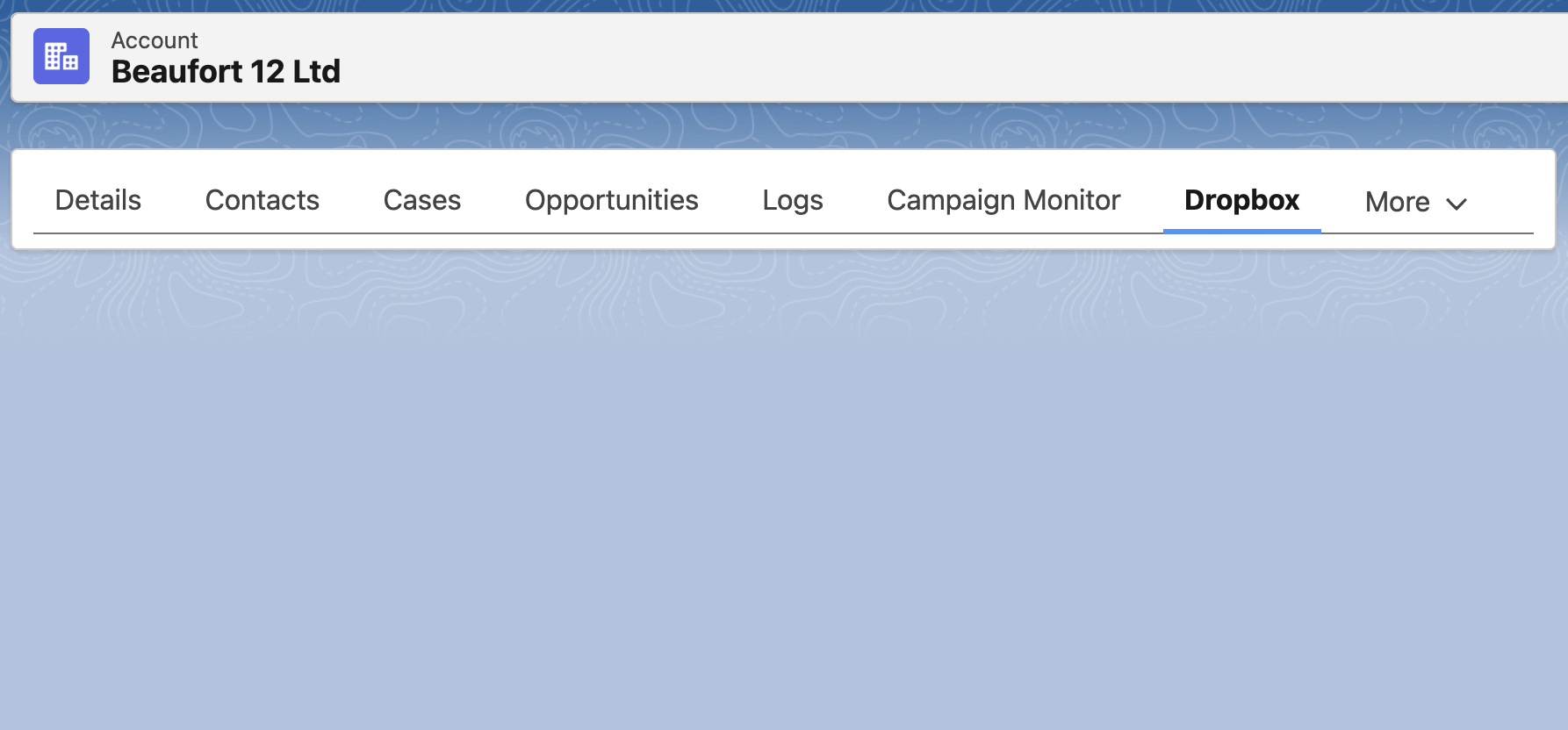
Assign Dropbox Standard, or Dropbox Admin for administrators. If the permission set is assigned and the component still does not appear, confirm it has been added to that object's record page in the Lightning App Builder. The package ships no pre-built record pages, so this is manual for every object.
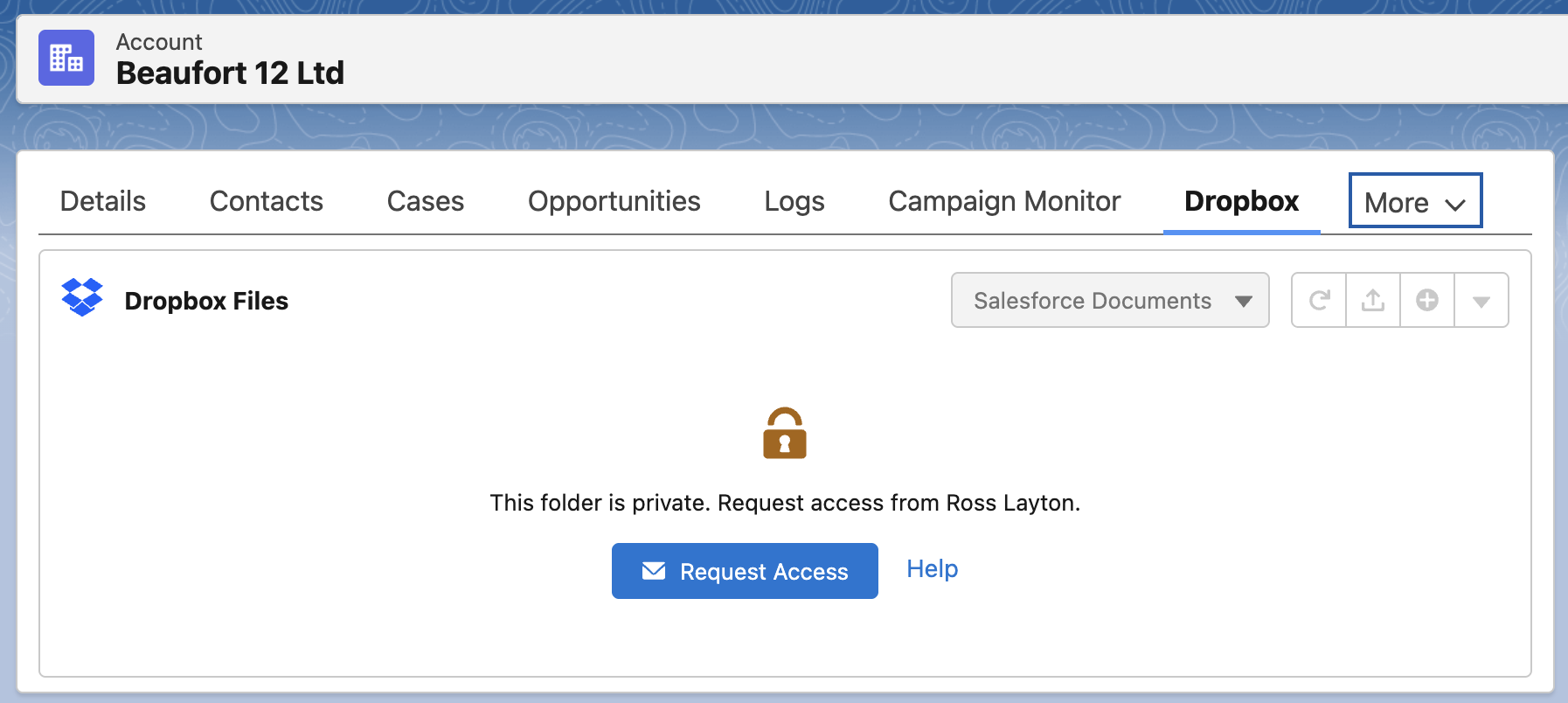
A user sees "This folder is private"
Cause: the Dropbox folder belongs to another user's Dropbox account and has not been shared with this user.
This is expected behaviour, not a fault. Salesforce record access and Dropbox folder access are independent layers. A Salesforce administrator cannot override Dropbox sharing.
The user chooses Request Access, which notifies the owner by Salesforce notification and email. The owner then shares the folder in Dropbox, choosing Can edit or Can view.
If this happens constantly, the fix is architectural rather than case by case. Move the org to a Dropbox Business Team Folder workspace so access is governed centrally in Dropbox, or share the workspace root folder once with everyone who needs it.
Files are not appearing, or the folder will not load
Work through these in order.
- Is the user connected? An expired connection produces a reconnect message. Reconnecting takes seconds and does not affect files.
- Does a folder mapping exist for the record? No mapping means no folder has been created yet, which is normal for a record nobody has opened.
- What is the mapping's sync status? See the table below.
- What does the mapping's error message field say? This is the most specific information available anywhere.
- Is the user in the right workspace? If the org has several, the file manager only shows folders under the active one.
Understanding folder mappings and sync status
The integration does not mirror your files. For each record with a folder it stores one mapping record holding the Salesforce record ID, the Dropbox folder ID and path, the object type, the workspace, the connected user, a sync status, a last sync date and an error message.
Because only the mapping is stored, Dropbox files never consume Salesforce file storage.
Sync status values
| Status | Meaning | What to do |
|---|---|---|
| Active | Resolves to a folder that exists and is reachable. | Nothing. |
| Broken | The folder could not be resolved at the stored path or ID. | Usually moved or renamed in Dropbox. Reopen the record so the path revalidates, then check the error message field. |
| Folder Deleted | The folder no longer exists in Dropbox. | Restore it from Dropbox deleted files, or delete the mapping and let a new folder be created when the record is next opened. |
| Error | An unexpected failure. | Read the error message field. Usually an expired connection or a folder permissions problem. |
How mappings get created
Lazily. The first time somebody opens the file manager on a record, the integration looks for a mapping, and if none exists it creates the folder under the current workspace and writes the mapping. A record nobody has opened has no folder, by design.
If you want folders in advance, use the Create Folder for Record action in a record-triggered Flow.
Your fastest health check
Build a report on folder mapping records filtered to sync status not equal to Active. There is no packaged report for this, so you will need to create it once, but it surfaces every broken mapping in the org in one place.
Deleting a mapping
Safe. The next time the record is opened, a new folder and mapping are created. The old Dropbox folder is not deleted, so you may end up with two folders for that record.
Uploads fail
File larger than 150 MB. That is the supported ceiling.
Dropbox storage full. Check Connection Settings, which shows usage against the user's Dropbox allocation. The bar turns amber above 90 per cent and red above 95 per cent. That is a Dropbox limit, not a Salesforce one.
Connection expired mid-session. Reconnect and retry.
Upload lands somewhere unexpected. Uploads go into whichever folder is currently open, including a subfolder the user navigated into.
A Flow or agent action fails
The running user has no Dropbox connection. This is the usual cause, and it bites hardest in scheduled or automated Flows, where the running user is an automation or integration user who has never connected Dropbox. There is no org-level service connection. Add Check Dropbox Connection at the start of the Flow so it fails with an explanation.
You are checking the wrong output field. Check Dropbox Connection has no success output, use isConnected. List Files for Record reports failures in errorMessage, not message. Error handling that reads message uniformly will silently miss list failures.
Search returns files from outside the workspace. The search action is not record-scoped. Set searchPath to constrain it.
A temporary download link has stopped working. Those expire after 4 hours by design. Use Get Shareable Link for anything durable.
Folder or file names look wrong
A folder is named Acme Corp (2). Another record with the same name already had a folder in that location. Salesforce allows duplicate record names, Dropbox does not allow duplicate folder names in one parent. The mappings keep them straight, so files still appear on the right record.
A record was renamed but its folder was not. Expected. The mapping still points at the original folder, so nothing breaks and files stay correctly linked. Rename the folder from the file manager if you want them to match.
Two folders exist for the same object, for example Accounts and Clients. Somebody renamed the object's label in Salesforce. New folders use the new plural label while existing folders keep the old one. Both keep working, but you now have two object folders.
Billing and seat count questions
A user has a permission set but sees a licence message. That is a package licence issue, not a permissions issue. See the billing article.
Seat count has not dropped after disconnecting users. The count is reported to Beaufort 12 twice a day, so allow up to 12 hours. Also note that removing a permission set does not reduce the count; disconnecting the Dropbox connection does.
When to contact support
Have these ready and we can usually resolve it in one exchange:
- The record ID and object
- The affected user, and whether other users see the same thing
- The sync status and error message from the folder mapping record
- Whether the user is connected, and to which Dropbox account
- Which workspace is active, if the org has more than one
Security and Compliance
Understand how the connection works.
