

 DROPBOX FOR SALESFORCE · GUIDE
Dropbox for
Agentforce.
Find the file. Get the answer. Take the next step.
Work with Dropbox documents from Salesforce: find the right file, read supported content and organise record folders.
Dropbox for Agentforce adds packaged topics and actions to Salesforce Agentforce. Your administrator chooses the agent, its instructions and the capabilities available to your team.
Dropbox for Salesforce supplies the product connection and Salesforce context.
Dropbox for Agentforce provides the supported topics and actions.
A customer-owned employee agent, access and a tested set of instructions.
Choose your starting point
- In Salesforce: configure a dedicated employee agent or add the packaged topics to an existing suitable agent. This guide follows that route.
- In Slack: add a Slack channel to the employee agent after it works in Salesforce.
- In an AI app: Hosted MCP is a separate connection to the packaged actions; it does not run the employee agent’s instructions.
The Dropbox Agentforce Starter ↗ includes prerequisite checks, a template and setup scripts. It is configuration you own, not a replacement for the installed packages.
Before you start
Use this checklist with your Salesforce administrator before setting up the agent.
Need the base app first? Follow the Dropbox setup guide. For the Agentforce package installation link and currently supported version, contact our team.
Using the starter scripts? Install Salesforce CLI with the Agent plugin, Python 3 and jq. Work in the root of your local starter copy. The read-only preflight checks the org and installed actions; fix every failure before continuing.
Setup walkthrough
Start with one test user and a small, known set of data. Expand a step for instructions and a check before moving on.
01Connect and check Dropbox
Open a test Salesforce record with Dropbox Files. Confirm that its linked Dropbox folder and demonstration files are accessible to the test user.
- Check the base app configuration and record-folder mapping.
- Have each intended user complete the Dropbox Connect sign-in. The administrator’s connection does not connect everyone.
- Open a known document through Dropbox Files to check access outside the agent.
The test user can find the expected record and product data without using the agent.
02Install the add-on and enable Agentforce
The starter requires Dropbox for Salesforce 1.39 or later and Dropbox for Agentforce 1.0 or later. Reading PDF and Office documents requires extension 1.2 or later; reading directly from search results requires 1.4 or later.
- In Setup → Installed Packages, confirm Dropbox for Salesforce and Dropbox for Agentforce are present.
- In Setup → Einstein Setup, enable Einstein if required.
- In Setup → Agentforce Agents, enable Agentforce. Einstein alone is not sufficient.
If you need the supported installer, contact our team. Salesforce labels and availability can vary by release and licence.
Both packages are installed in the same org and Agentforce is enabled.
03Give the test user access
Assign Dropbox Agent Admin (dbx__Dropbox_Agent_Admin), plus the base-app access and package licence needed for that user. Check Salesforce record visibility and the user’s Dropbox permissions.
The employee agent uses the logged-in user’s Dropbox connection. A missing connection can produce “Dropbox is not connected” even when the agent itself is configured correctly.
This starter uses an Employee Agent, which runs as the logged-in user. Do not configure a default Agent User for this route. Access to the new agent is a separate step after it is published.
The user has base-app access, the extension permission and access to the test records.
04Choose and create your agent
Already have a suitable employee agent? Add the packaged Dropbox topics through Add subagent → Browse AgentExchange or the Asset Library. You do not need a second agent or the creation script. Existing-agent instructions ↗
Want a dedicated agent? Use the starter route below. It creates the customer-owned configuration and aligns action inputs and outputs with your installed package.
Dedicated-agent starter: commands and expected result
Get a local copy of the starter repository ↗. Authenticate to the intended test org; replace my-org with your alias throughout.
sf org login web --alias my-org
./scripts/preflight.sh my-org
Fix the preflight failures, then generate and validate a local draft:
./scripts/create-dropbox-agent.sh my-org \
  --name Example_Dropbox_Agent \
  --label "Example Dropbox Agent" \
  --company "Example Organisation" \
  --draft
Keep --draft on your first run. It creates and validates the local authoring bundle without publishing or activating the employee agent. The generated file is in force-app/main/default/aiAuthoringBundles/<ApiName>/.
You have added topics to your existing agent or created a validated local draft.
05Review instructions and boundaries
- Resolve the record and file first. Confirm the exact Salesforce record, file name and destination. Ask when matches are ambiguous.
- Read the actual content. Do not infer document terms from the filename. Identify the source file and explain missing or unsupported content.
- Keep search separate from changes. Finding or reading a file does not authorise moving, deleting or restoring it. Ordinary folder actions follow the explicit request and resolved record context.
- Confirm deletion and restoration. For a restore, list the available versions, identify the exact filename, date and size, then obtain explicit confirmation. Never guess a revision or display its internal token.
- Check the action result. Do not claim success, file counts or included subfolders unless the action output confirms them.
Customising and preserving your starter
Adapt the company, label, welcome message and tone. Preserve packaged action targets, input/output schemas, employee-agent execution and the product’s confirmation rules.
sf agent validate authoring-bundle --json \
  --api-name Example_Dropbox_Agent -o my-org
Do not regenerate over manual edits. The creation script overwrites the local template. Keep your customised bundle, validate it and follow the repository’s direct publish instructions. Package updates do not automatically rewrite your customer-owned agent.
Customisation guidance ↗The available actions match the team’s purpose and the starter’s safeguards remain intact.
06Preview, cancel and verify
Find a known document and ask a question about its contents. Test a user without access and a user who has not connected Dropbox. For a write test, use a disposable file: list versions, cancel a restore, then confirm a fresh restore to a selected version.
Testing the draft and inspecting results
Follow the starter’s testing route ↗ for your installed Salesforce tools. If you need a published version in Builder, use the same creation command with --no-activate instead of --draft to publish it without activation.
Inspect the action trace: confirm the intended packaged action ran, its inputs match the request and the returned result supports the answer. Check the underlying record or file separately. Do not treat a timeout as proof that no action occurred.
Read results match the source, cancelling makes no change and a confirmed test action produces a verified result.
07Publish, grant access and retest
Once your administrator has reviewed the tested configuration, publish and activate the intended version.
Starter publishing options
Remove --draft from the same creation command to publish and activate. Keep --no-activate if you want an inactive version for review. Publishing an existing API name creates a new version.
If you edited the generated bundle, use the repository’s direct validate/publish route instead of regenerating it. Keep the existing API name when intentionally creating a new version.
- Assign the generated <Agent label> Access permission set and confirm Agent Access includes the agent. Keep Dropbox Agent Admin and have each user complete Dropbox Connect.
- Refresh the user’s session after permission changes. Open Agentforce in Salesforce and select the configured agent.
- Repeat a read-only test as an intended end user, not just as an administrator.
- Give colleagues a few precise sample prompts and a route to their Salesforce administrator if results are missing.
The intended users can select the active agent and get the expected results with their own access.
What the agent can do
Your installed package version, configured actions and user access determine which requests are available.
Records and documents
Find accessible record folders, search for documents and locate a named file or version.
Answers from files
Read supported documents, inspect a topic and summarise content with the source in view.
Folder operations
Create, copy, move or rename content; delete or restore only through the appropriate confirmed request.
Interactive examples
Work through a read-only question, a useful follow-up and a confirmed change. These examples teach the sequence; they do not connect to your org.
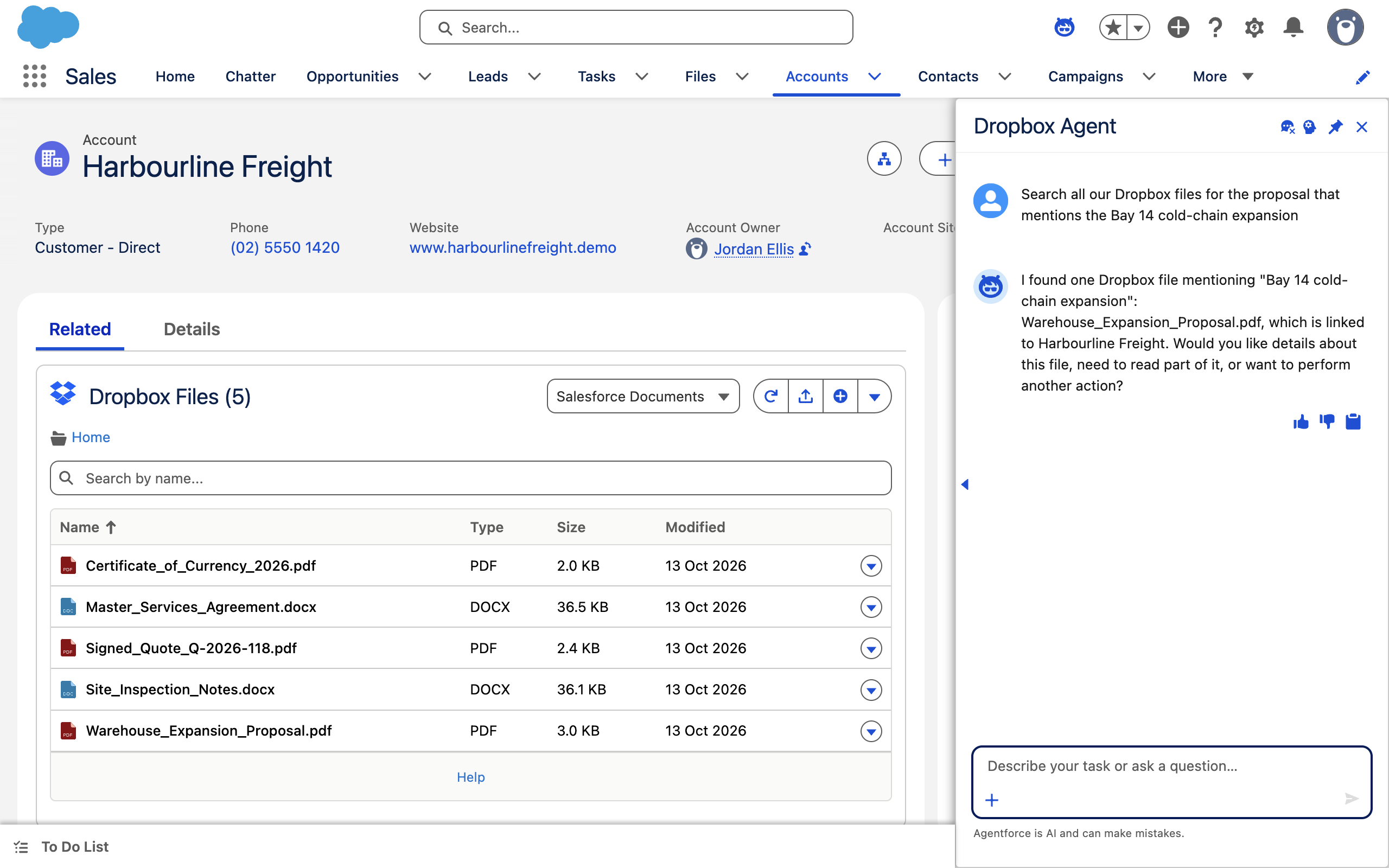
Find the right document
Before you try it: A connected Dropbox user with access to the test Account and files.
Give useful context
Review the returned match
Found Warehouse_Expansion_Proposal.pdf for Harbourline Freight (Demo).
If multiple files or records match, the agent should ask you to choose. A search result is not permission to modify a file.
Verify the file
Open the Account’s Dropbox Files and inspect the returned document. Check the record and filename. A “no results” answer may reflect access or search limitations, not proof that no document exists.
Cancelled — no change made
The example stops at the preview. In your org, verify the target record or file if you are unsure whether an action ran.
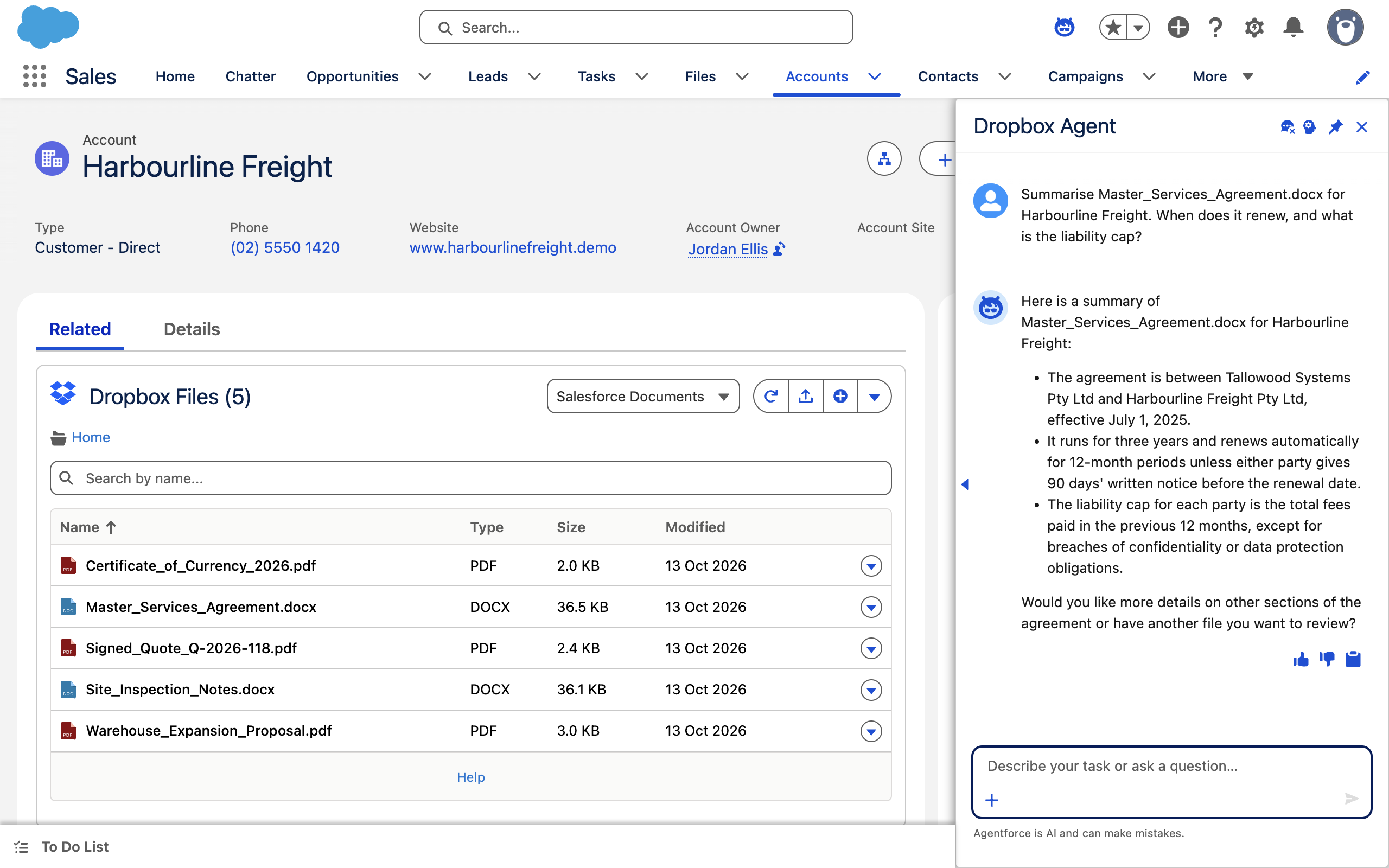
Get an answer from a named file
Before you try it: A supported document and the required extension version.
Ask about specific contents
Keep the source in view
The demonstration agreement states 90 days’ written notice before renewal.
The actual answer must come from the file-reading action, not the filename or model memory. If extraction is incomplete, the agent should say so.
Check the original wording
Open the original agreement and check the relevant clause and context. Reading a document does not update Salesforce fields or alter the agreement.
Cancelled — no change made
The example stops at the preview. In your org, verify the target record or file if you are unsure whether an action ran.
Restore a selected test-file version
Before you try it: A disposable file with version history; use no live customer documents.
Request a version review
Choose and confirm the exact version
Restore Guide_Test_Notes.docx to the listed version from 10 November 2026, 09:30 UTC, 24 KB?
This changes the file’s current contents. The version must come from the action’s returned list; internal revision tokens should not be shown.
These buttons only change the illustration. They do not update your connected systems.
Use the action result
A result is required before the agent can claim completion. If the version was not returned by the version-list action, it must not be guessed or restored.
Verify the restored file
Open the disposable file in Dropbox and check the restored contents and version history. If the action failed or timed out, inspect the file before trying again.
Cancelled — no change made
The example stops at the preview. In your org, verify the target record or file if you are unsure whether an action ran.
Illustrative responses, not live product output. Exact wording and available results depend on the installed actions and your configuration.
See it in Salesforce
Open an image to inspect the product view at full size. Use the examples above to practise the conversation separately.
Troubleshooting
| What you see | What to check |
|---|---|
| Preflight fails or topics are missing | Check the org alias, CLI Agent plugin, Python 3, jq and installed package versions. Fix the reported failures rather than assuming a fixed action count. |
| The agent is missing from the Salesforce panel | A local draft is not active. Check the published version, activation and the user’s generated Agent Access permission set. Refresh the session. |
| A user cannot find known data | Check their package licence where required, product permissions, extension permission and record access. Confirm that this user completed Dropbox Connect. |
| The answer does not match the source | Confirm the exact record, file or event and the action that ran. Read the original document; do not treat a filename or partial extraction as the whole file. |
| A requested change is blocked | Review the exact preview and confirmation, permissions and supported operation. A changed target needs a new preview where applicable. Do not bypass the confirmation rules. |
| A request times out or gives no clear outcome | Inspect the source record or file before retrying. Do not assume a timeout means nothing happened. |
| Validation reports a property or schema error | A hand-pasted template can differ from your installed package. Preserve manual edits, then use the starter’s alignment process and validate again. |
| A document can be found but not read | Check the extension version and supported file format. Document reading needs 1.2 or later; direct reading from search results needs 1.4 or later. Check file access and extraction errors. |
Still stuck? contact our team with package versions, the failed step, error text and whether one user or everyone is affected. Leave out passwords, OAuth tokens and other credentials.
Common questions
Do I need to create another agent?
Does --draft publish the employee agent?
Can I use this in Slack?
Can I use an AI app through MCP?
Will a package update overwrite my agent?
Does every user need to connect Dropbox?
Can it read every file type?
Will every folder operation ask twice?
Automating with Flow and Agentforce
Explore the related Dropbox guide.
