Who this guide is for: Salesforce administrators setting up automated lead nurturing campaigns through Mailchimp
Most Salesforce teams sync contacts to Mailchimp for customer communications. But what about the prospects who haven't converted yet? Your leads sit in Salesforce with rich qualification data: Lead Source, Status, Rating, Industry. That data could power highly targeted nurture campaigns. The trick is getting it into Mailchimp automatically, then letting engagement flow back to inform your sales process.
This guide walks through syncing Salesforce leads to Mailchimp specifically for lead nurturing use cases. You'll map the fields that matter for pre-opportunity prospects, structure audience membership around nurture stages, and set up automation rules that move leads through your funnel without manual list management.
How Lead Syncing Works Between Salesforce and Mailchimp
Mailchimp for Salesforce moves data in both directions. Leads flow from Salesforce to Mailchimp audiences, where they receive nurture campaigns. Email engagement (opens, clicks, bounces, unsubscribes) syncs back to the Lead record in Salesforce, giving your sales team visibility into which prospects are engaging.
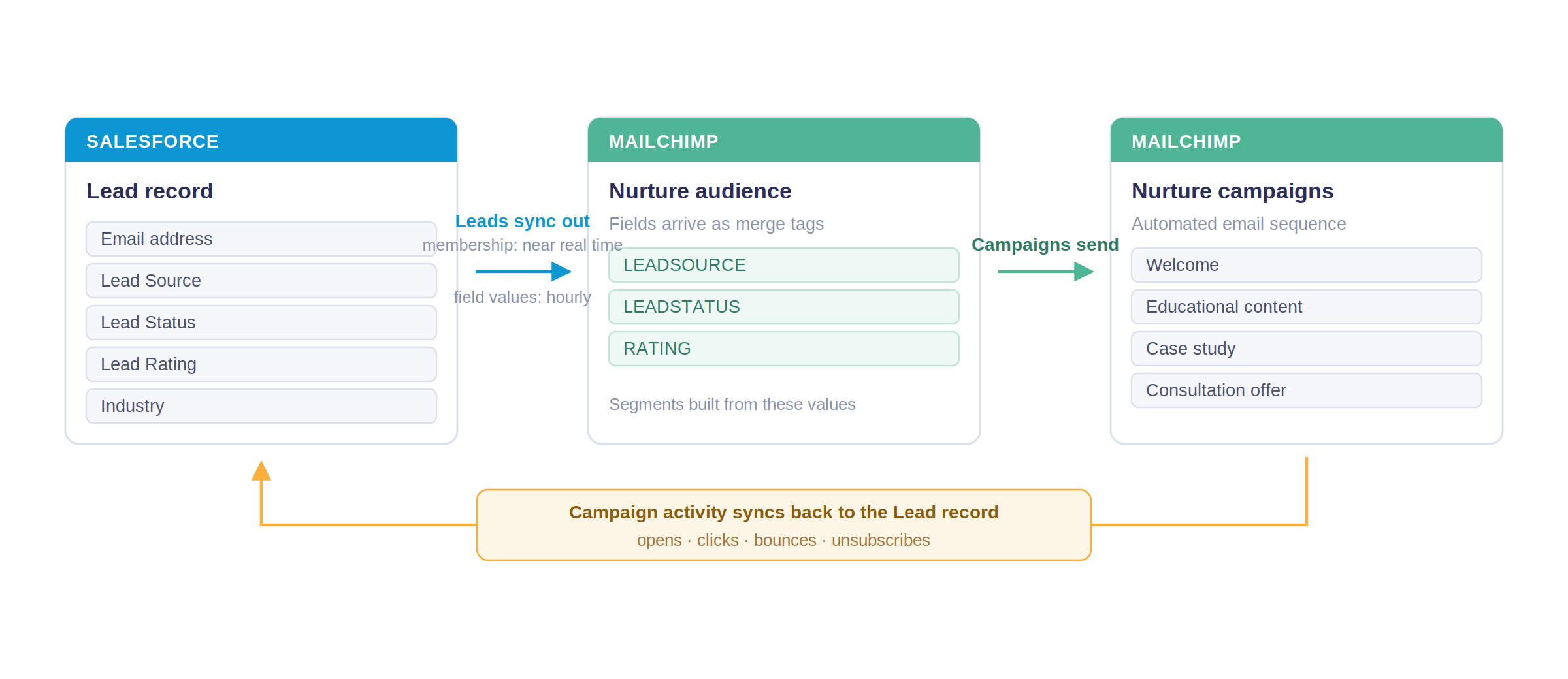
What syncs to Mailchimp: email address, name, and any lead-specific fields you choose to map. Most teams send Lead Source (where the lead came from), Lead Status (their current stage), Lead Rating (Hot, Warm, Cold), and custom fields like product interest or pain points. These become merge tags in Mailchimp, letting you personalise emails and build segments.
What syncs back: all campaign activity. When a lead opens an email, clicks a link, or unsubscribes, that action appears on their Salesforce record. You can report on which nurture campaigns drive qualification, which leads are cold despite outreach, and which segments convert fastest.
Sync timing matters for lead nurturing. When you add or remove a lead from an audience in Salesforce, the change syncs to Mailchimp in near real-time. Field updates (like a Lead Status change) sync hourly. A lead who moves from "New" to "Nurturing" in Salesforce will be added to your nurture audience within minutes, but the updated Status field will appear in Mailchimp within an hour.
The key difference from contact syncing: leads represent prospects not yet in your pipeline. They need different messaging, different timing, and different exit conditions. A contact might receive product updates and feature announcements. A lead receives educational content, case studies, and offers to book a consultation. Your field mapping and audience structure should reflect that distinction.
For a full walkthrough of the initial connection between Salesforce and Mailchimp, see our complete Mailchimp Salesforce integration guide.
Step 1: Configure Which Leads Sync to Mailchimp
Not every lead belongs in a nurture campaign. Unqualified leads, converted leads, and leads your team is actively working shouldn't receive automated emails. Start by defining exactly which leads should sync.
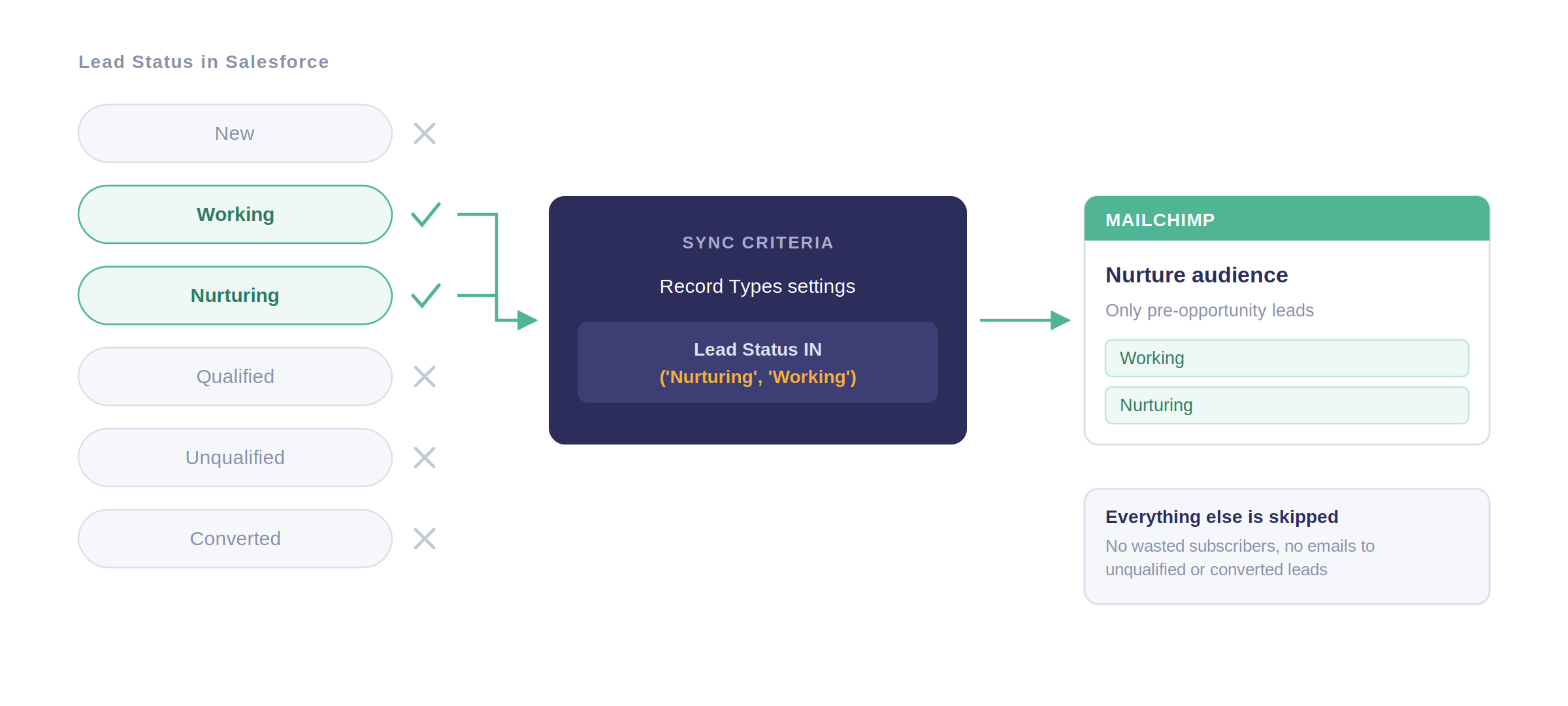
Best practice: sync only leads with Status values that indicate they're in a pre-opportunity nurture stage. Include "Nurturing" and "Working", but exclude "Unqualified" and "Converted". If a lead converts to a contact, they'll automatically stop syncing as a lead and start syncing as a contact if you've enabled contact syncing. This prevents duplicate Mailchimp subscribers.
The initial sync can take 10 to 30 minutes depending on how many leads meet your criteria. Salesforce processes them in batches, so you won't see all leads appear in Mailchimp immediately. After the first sync completes, new leads are added in near real-time whenever they meet your criteria.
Step 2: Map Lead-Specific Fields to Mailchimp
Lead records contain data that doesn't exist on contacts: Lead Source, Lead Status, Lead Rating. These fields are essential for segmenting nurture campaigns, but they won't sync to Mailchimp unless you map them.
Essential lead fields to map:
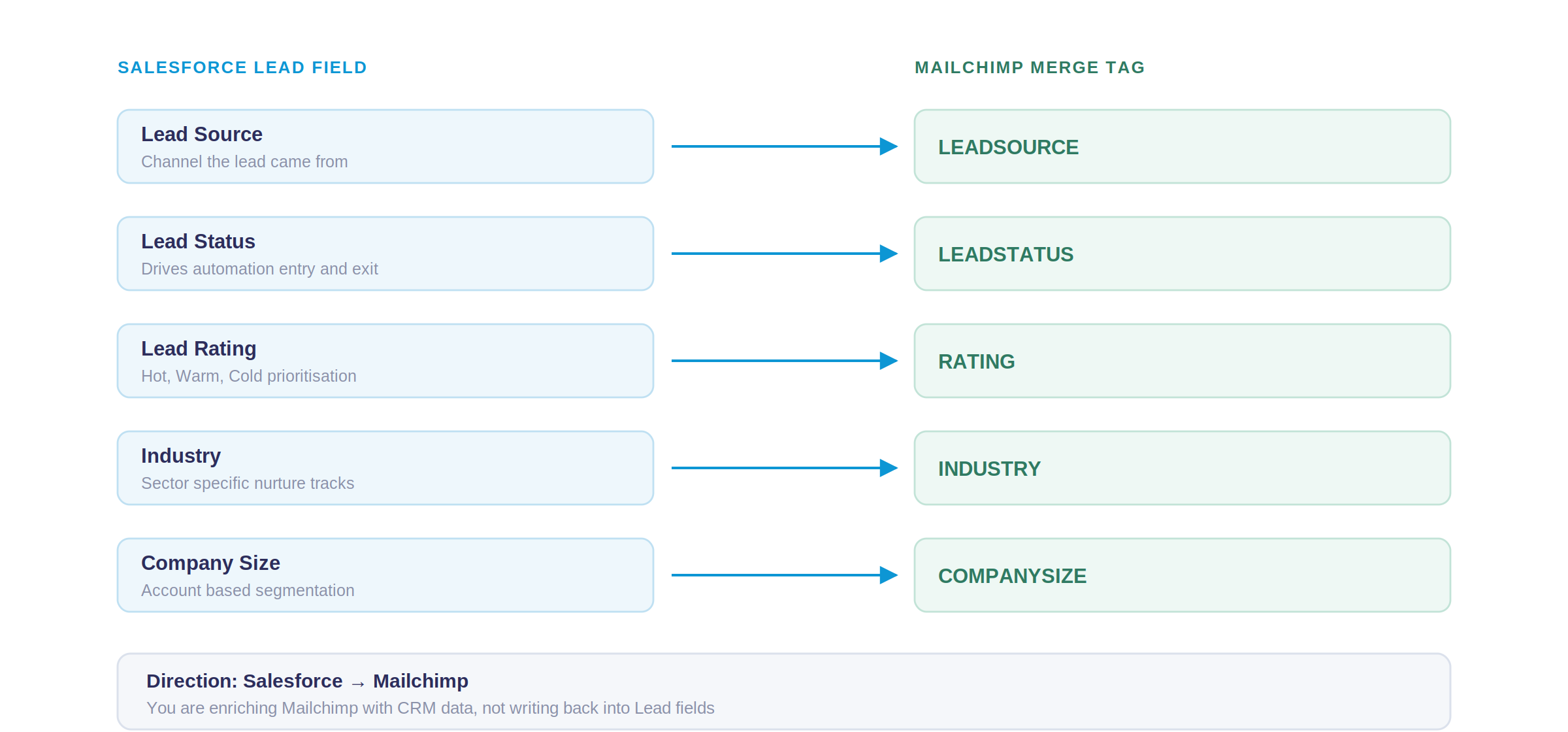
If the merge tag doesn't exist in Mailchimp yet, create it in your audience settings before mapping. Most teams also map custom fields specific to their lead qualification process: product interest, pain points, budget tier, decision timeline. These become powerful segmentation variables once they're in Mailchimp.
Direction matters. You're enriching Mailchimp with CRM data, not pulling Mailchimp data back into lead fields. The exception: if you use Mailchimp forms to capture new leads and want form responses to update Salesforce, you can map those fields bi-directionally.
Not sure which lead fields to map for your nurture campaigns? Send us your Salesforce Lead field list and we'll suggest a mapping structure based on common lead nurturing workflows. Get field mapping recommendations.
Step 3: Create Your Mailchimp Nurture Audience
In Mailchimp, an audience is a list of subscribers. Your leads need their own audience (or a segment of an existing audience) so you can target them with nurture-specific campaigns.
For example: "Lead Status = Nurturing AND Lead Rating != Cold" ensures only warm or hot leads in the nurture stage receive campaigns. Leads marked Cold won't clutter your audience, and leads who convert out of the Nurturing status will be removed automatically.
Key decision: should you use a single audience with segments, or multiple audiences for different nurture tracks? Most teams find a single audience easier to manage and report on. You create segments within that audience for different messaging (one for webinar attendees, another for content downloaders), but all leads live in the same place. Multiple audiences make sense only if you have completely separate nurture programmes with no overlap.
Once the audience is linked, leads who meet your membership rules will begin syncing. If you've already completed Step 1, those leads are already in Mailchimp; you're now organising them into audiences. If you haven't synced yet, the audience will populate after your first sync runs.
For more on building advanced segments, see our guide on how to segment your Mailchimp lists using Salesforce data.
Step 4: Build Segments for Different Nurture Campaigns
Your lead audience in Mailchimp now contains everyone in the "Nurturing" stage. But not all nurture campaigns should go to everyone. A lead who attended your webinar needs different follow-up than someone who downloaded a white paper. Segments let you target subsets of your audience without creating multiple lists.
Example segment structures:
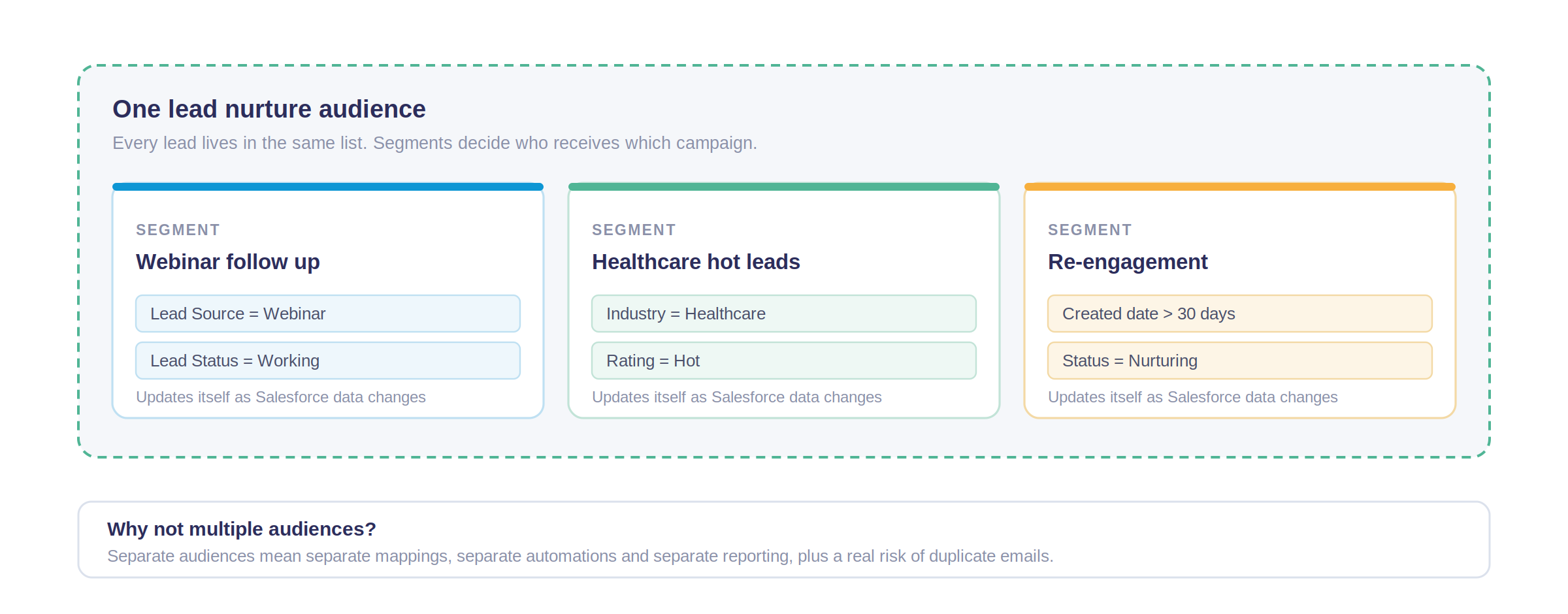
Segments update automatically as lead data changes in Salesforce. When a lead's Status updates from "Nurturing" to "Qualified", they'll be removed from your nurture segments without manual intervention. When a new lead with Lead Source = Webinar enters Salesforce, they'll appear in your post-event segment as soon as the next sync runs.
Use merge tags from Salesforce to personalise email content. You can reference {{LEADSOURCE}} in the email copy to say "Thanks for attending our webinar" or "We noticed you downloaded our pricing guide". This level of personalisation isn't possible without syncing lead fields.
Step 5: Set Up Mailchimp Automations for Lead Nurturing
Manual campaigns require someone to log in, select a segment, and click Send. Automations run themselves. When a lead meets your trigger conditions, Mailchimp delivers a pre-built sequence without any admin work.
A typical nurture sequence might look like this:
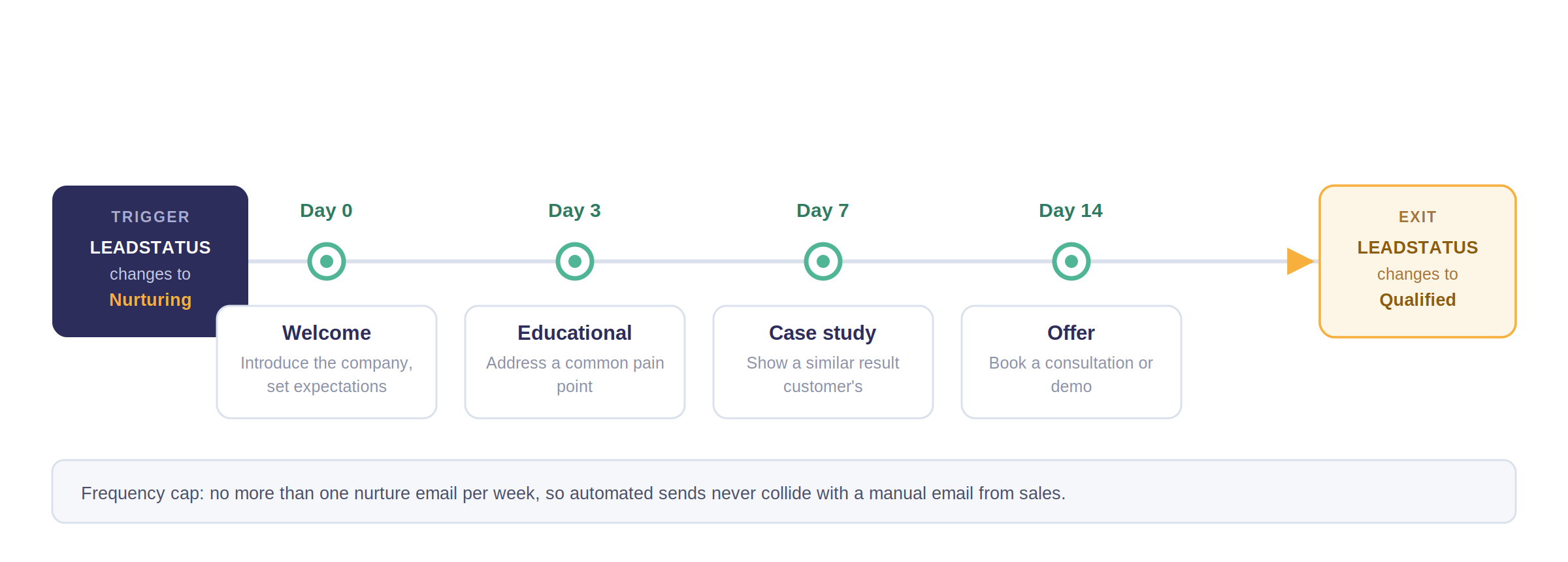
Exit conditions are critical. A lead who moves to "Qualified" status in Salesforce should stop receiving "Why you should talk to us" emails. Set your automation to remove leads when their Status changes to anything other than "Nurturing". Similarly, if a lead unsubscribes or their email bounces, they'll be removed automatically.
Frequency caps prevent your nurture sequence from competing with other campaigns. If your sales team sends a manual email to a hot lead, you don't want an automated nurture email landing in their inbox the same day. Mailchimp's frequency cap feature ensures each subscriber receives no more than your specified limit.
Common Lead Syncing Issues and Solutions
Why aren't my new leads appearing in Mailchimp?
Check three things. First, verify the lead meets your sync criteria in the Record Types configuration. If you've set "Lead Status IN ('Nurturing', 'Working')" and the lead is marked "New", they won't sync. Second, confirm the lead has a valid email address. Leads without an email or with an invalid format (missing @ symbol) will be skipped. Third, check that your audience membership rules include this lead. Even if a lead syncs to Mailchimp, they won't appear in a specific audience unless they match its membership criteria.
Why is the sync creating duplicate contacts in Mailchimp?
It isn't. Mailchimp uses email address as the unique identifier. If a lead and a contact in Salesforce share the same email address, only one subscriber is created in Mailchimp. That subscriber is linked to both Salesforce records. When the lead converts, the Mailchimp subscriber shifts its link from the Lead record to the new Contact record. No duplicate is created, and no campaign history is lost.
Can I sync leads to multiple Mailchimp audiences?
Yes, but carefully. Most teams use one audience with segments rather than multiple audiences. Multiple audiences mean managing separate field mappings, separate automations, and separate reporting. If a lead belongs to two audiences, they could receive duplicate emails. The cleaner approach: one lead audience, multiple segments within it for different nurture tracks.
How do I stop syncing a lead without deleting them?
Change their Lead Status to a value excluded from your sync criteria. If your sync criteria is "Lead Status IN ('Nurturing', 'Working')", changing a lead's Status to "Unqualified" will stop syncing them. You can also remove them from the audience manually in Salesforce using the Mailchimp membership component. The lead remains in Salesforce; they just won't receive nurture emails.
Why isn't Lead Status updating in Mailchimp?
Check your field mapping direction. If it's set to Mailchimp → Salesforce instead of Salesforce → Mailchimp, Status changes in Salesforce won't push to Mailchimp. Open the Field Mappings tab, find the Lead Status mapping, and confirm the direction arrow points from Salesforce to Mailchimp. Also verify the field is mapped to the correct merge tag in Mailchimp. If you mapped it to STATUS but the merge tag in Mailchimp is called LEADSTATUS, the sync will fail silently.
What happens when a lead converts to a contact?
The Mailchimp subscriber remains, now linked to the new Contact record instead of the old Lead record. No duplicate is created. All campaign history (opens, clicks, unsubscribes) stays with the subscriber and becomes visible on the Contact record. If you have different audience membership rules for contacts, the person might move from your lead nurture audience to a customer communication audience. That's controlled by your Salesforce criteria, not by the conversion itself.
If you're still stuck, Beaufort 12 support can review your configuration and identify what's blocking the sync.
Measuring Lead Nurture Performance in Salesforce
Campaign activity from Mailchimp syncs back to Salesforce Lead records. Open the Lead page in Salesforce and scroll to the Mailchimp campaign activity section. You'll see every email sent to that lead, whether they opened it, which links they clicked, and when they unsubscribed if they did. This data sits directly on the Lead record, no need to log into Mailchimp.
Create Salesforce reports to track performance across your entire nurture programme:
Use Salesforce Campaign Influence reports to attribute pipeline and revenue to specific nurture campaigns. If a lead receives three emails before they convert to an opportunity, you can credit those campaigns with influencing the deal. This data proves the ROI of your nurture investment.
Best practice: tag your Mailchimp campaigns with consistent naming conventions. "Nurture - Healthcare - January 2024" makes it easy to filter reports by segment and time period. Inconsistent naming (NurtureHealthcare, HC-Nurture-Jan, Healthcare January) creates reporting chaos.
When a lead qualifies and converts to an opportunity, your nurture data travels with them. The Contact record linked to that opportunity will show the same campaign history, giving your sales team context on what content resonated before the lead raised their hand.
Get Started with Mailchimp for Salesforce
Mailchimp for Salesforce is the official Intuit-endorsed integration for syncing Salesforce leads to Mailchimp. You can install it from the Salesforce AppExchange and configure your first lead nurture campaign in under 30 minutes. A 14-day free trial in production includes all features, and pricing starts at $25/month based on active subscriber count.
