Who this guide is for: Salesforce admins and event or marketing managers who already run Eventbrite events and want each attendee to exist as a Salesforce Contact or Lead for post-event nurturing, not just as a Campaign Member.
- You'll need: Salesforce admin access (System Administrator or equivalent permissions), Eventbrite for Salesforce installed and connected to your Eventbrite account, and a decision on whether attendees should become Contacts, Leads or both. A Mailchimp for Salesforce connection is optional, but useful if you plan to nurture attendees by email.
- Time: 20-30 minutes, plus one sync cycle to verify results
- At the end: Every new Eventbrite attendee is created or matched as a Salesforce Contact (or Lead) with registration details and custom question answers on the record, and Campaign Membership links to that Contact automatically.
Three weeks after your conference, someone asks for a list of attendees who are not yet customers. The Campaign has every name on it. The Contact object, where your team actually manages relationships, has almost none of them. That gap is the problem with stopping at Campaign Members: they record who came, then the list sits inside a Campaign and never reaches the records people work from day to day. To sync Eventbrite to Salesforce Contacts, you need Eventbrite for Salesforce to create or match a Contact (or Lead) for every attendee, and that is what this guide sets up. The capability is built in. It is switched off by default, though, so your existing data stays untouched until you decide otherwise. If you are new to the integration, start with the broader Eventbrite Salesforce integration guide and come back here for the Contact layer.
How the Eventbrite to Salesforce Contact sync works

The sync works in two stages. First, the primary sync pulls your Eventbrite events, orders, attendees and question answers into Salesforce custom objects. Nothing in your standard objects changes at this point. Once those records have landed, a job called RuleBatch runs and decides whether to create or update Leads, Contacts and Accounts, based entirely on what you have configured on the Mappings page. Until you configure it, RuleBatch creates nothing.
That ordering is why contact-level sync matters even if campaigns are your main goal. When syncing attendees to Salesforce Campaigns, the integration matches Campaign Members using the Contact or Lead ID stored on the Attendee record. No Contact, no reliable match.
The primary sync runs hourly by default, and you can change the schedule. On first connect it performs a full sync of everything Eventbrite holds for your organisation, unless you set days to sync in Sync Settings. After that, it only requests data changed since the last run. All of this uses outbound callouts from Salesforce to Eventbrite, so none of it counts against your Salesforce API limits.
Step 1: Confirm Eventbrite for Salesforce is connected and syncing
- Open Eventbrite Settings from the App Launcher.
- Check that your Eventbrite account shows as connected and that the last sync timestamp is recent.
- Open the Eventbrite Events tab and confirm at least one event has synced.
- Open that event and confirm its attendees appear on the related Attendee records.
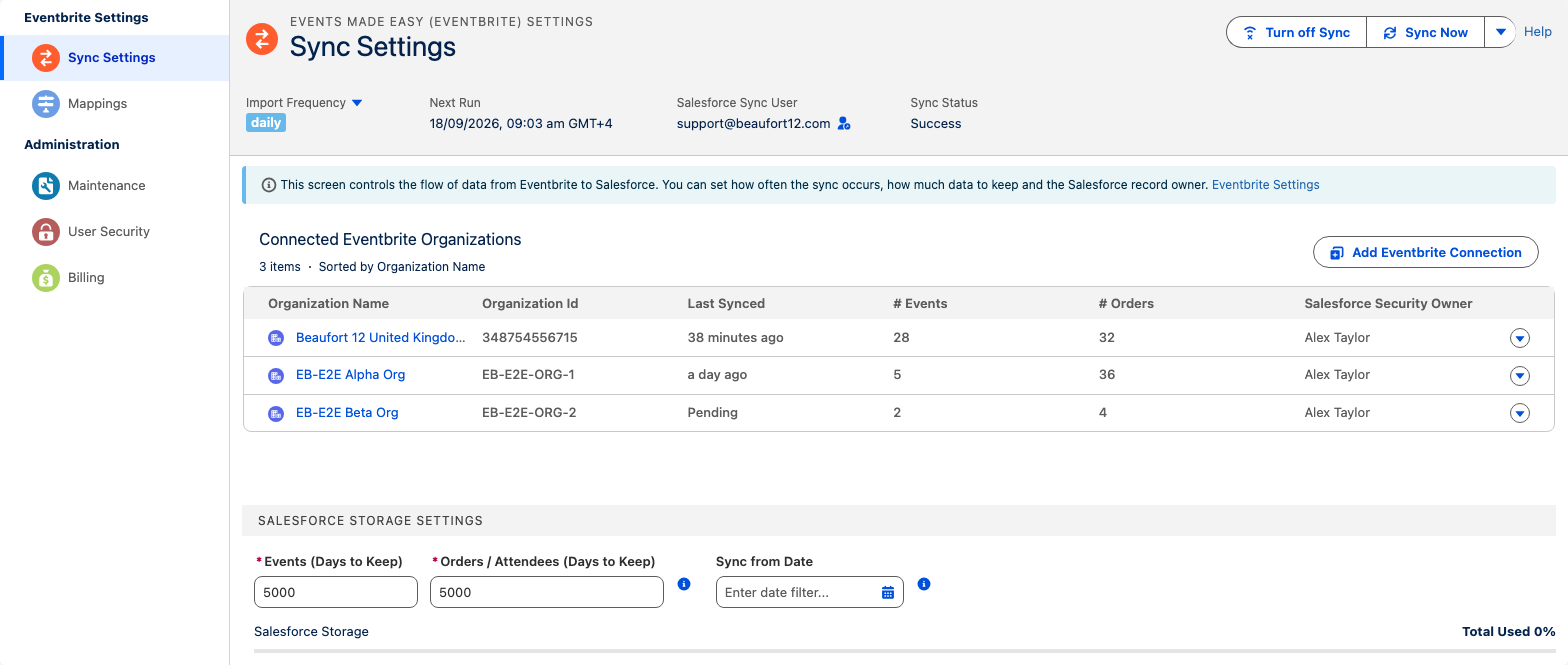
Contact creation depends on Attendee records already existing in Salesforce, so do not move on until you can see them. If the integration is not installed yet, follow the installation and setup guide first. And if you have years of historical events but only want recent attendees to become Contacts, set days to sync before your first full sync. Otherwise you will be creating records for people who attended something in 2019.
Step 2: Choose Contacts or Leads and switch on standard record creation
Decide which object suits your organisation before you touch anything. Contacts fit teams managing existing relationships: nonprofits, membership bodies, customer events. Leads fit sales-led teams that want to qualify an attendee before converting them. You can enable both. The configuration is identical for each.
- Open Eventbrite Settings and go to Mappings.
- Select the Contacts tab (or Leads, depending on your choice).
- Enable creation of Contacts (and/or Leads) for Eventbrite attendees.
- Enable Account creation separately if you want attendees attached to their organisation.
- Save your changes.

When RuleBatch runs, it looks for an existing record before creating a new one. That is why the email mapping in Step 3 is the single most important setting for avoiding duplicates. The off-by-default design is deliberate: until you flip these switches, the integration does not add a single Contact, Lead or Account to your org. Even so, test in a sandbox or with one small event before enabling creation across every event you run.
Step 3: Map Eventbrite attendee fields to Salesforce Contact fields
- On the Contacts tab of the Mappings page, click Auto Map.
- Review every mapping Auto Map created; it aligns fields by name, so First Name, Last Name and Email should match, but check rather than assume.
- Confirm Email is mapped to the Contact Email field, as this drives matching.
- Manually map anything Auto Map missed: job title, company, phone, address and any custom fields in your org.
- Map Eventbrite-specific values you want to keep on the Contact, such as ticket type, order date or event name.
- Click Save and confirm the mappings.
Pay attention to required fields. If your Contact object has a required custom field with no Eventbrite equivalent, RuleBatch cannot populate it and the record will not be created. Either supply a default value or relax the requirement for records the integration creates. Consider adding a dedicated field too, such as an "Eventbrite Attendee" checkbox or a Source picklist value, and mapping it so marketing can segment event-sourced Contacts later. The support hub has fuller documentation on field mapping if you want to go deeper.
Not sure which attendee fields belong on the Contact, or how Auto Map handles custom fields? The mappings guide walks through each option with examples.
Step 4: Map Eventbrite custom question answers to Contact fields
Dietary requirements, session preferences, consent checkboxes and "how did you hear about us" answers are often the most valuable data an event collects. Without mapping, they stay in the registration export rather than on the record. Mapping them to Contact fields makes them reportable and usable in segmentation.
- Open the Eventbrite Event record in Salesforce.
- Go to the Answer Mappings tab.
- Select the Contacts or Leads tab.
- Map each Eventbrite question to the Salesforce field that should hold the answer.
- Click Save, read the prompt, then click Save Mappings to validate.
These mappings are event-specific. Eventbrite generates a unique question ID every time a question is created, even when the wording is identical, so you map each event's questions individually. The Copy Questions feature clones questions from a previous event and attempts to carry the mappings across. That is a strong reason to standardise a small set of questions and reuse them.
One warning on picklists: the Eventbrite answer text must match the Salesforce picklist API name exactly, not the label. If your picklist value has the label "Vegetarian" and the API name "vegetarian", an answer of "Vegetarian" will not map. The AnswersBatch job writes these answers onto Contacts and Leads after they exist, and it is the step most often blocked by validation rules, triggers and flows. The troubleshooting section below covers what to do when that happens.
Step 5: Run the sync and verify your new Contacts
- Click Sync Now in Eventbrite Settings, or wait for the next scheduled run.
- Allow a few minutes after the primary sync for RuleBatch and AnswersBatch to finish.
- Open an Attendee record and check it now holds a Contact or Lead ID.
- Open that Contact and confirm the mapped fields and question answers are populated.
- Check the Campaign Member related list on the Contact to confirm the attendee is linked to the event Campaign.
- Open Maintenance in Eventbrite Settings and review any logged errors.
Audit a handful of attendees you know already existed as Contacts, and confirm they were matched rather than duplicated. Once the data is in place, you can report on event-sourced Contacts directly. If you also run Mailchimp for Salesforce, you can export an attendee segment to a Mailchimp Audience with the Data Wizard, or use Flow invocable actions to tag Contacts automatically when a new Attendee record is created.
Troubleshooting: why aren't my Eventbrite attendees becoming Salesforce Contacts?
Why are attendees syncing but no Contacts are being created?
Standard record creation is off by default, so the Attendee records exist but RuleBatch has nothing to act on. Enable Contact (or Lead) creation on the Mappings page and wait for the next primary sync. RuleBatch only runs after the main records have synced.
Why is the sync creating duplicate Contacts?
Most often the Email field is not mapped, so RuleBatch cannot find the existing record and creates a new one. Your org's own duplicate rules can also interact with the job.
- Confirm Email is mapped on the Contacts tab of the Mappings page.
- Review your Salesforce duplicate and matching rules for the Contact object.
- Audit the affected Attendee records under Maintenance to see how they were matched.
Why are custom question answers missing from the Contact record?
Answer mappings are per event, so a mapping on last year's event does not apply to this year's. Picklist answers must also match the API name exactly. Check the Answer Mappings tab on the current event, correct any picklist mismatches and look under Maintenance for AnswersBatch errors.
Why does the Maintenance log show Contact update errors?
A validation rule, trigger or flow in your org is rejecting the update, typically because it requires a field Eventbrite cannot supply. Read the error message to identify the rule, then either bypass it for the integration user or map a default value to satisfy it.
Why do Campaign Members show as Leads when I wanted Contacts?
Campaign Membership follows whichever ID the Attendee record holds. If Lead creation is enabled, the attendee may have been created as a Lead first. Review the Mappings page and disable Lead creation if you only want Contacts.
Eventbrite for Salesforce vs other ways to sync attendees as Contacts
Consultancies usually describe three routes for connecting Eventbrite and Salesforce: middleware such as Zapier, a dedicated app, or a custom build. Eventbrite offers a Zapier app, and Eventbrite for Salesforce is listed on the Eventbrite App Marketplace, so both are supported paths. The right choice depends on how bespoke your data model is.
| Criterion | Eventbrite for Salesforce (Beaufort 12) | Zapier-style middleware | Custom-built integration |
|---|---|---|---|
| Contact/Lead creation control | Per object, off by default | Per Zap, logic outside Salesforce | Fully custom, must be maintained |
| Custom question answers on Contact | Native per-event mapping | Possible, per-field steps | Possible with development |
| Campaign Member linked to Contact | Automatic via Attendee IDs | Separate steps, no built-in matching | Must be coded |
| Setup effort | Configured in Salesforce Setup, no code | Quick for simple flows | Highest, needs a developer |
| Fit for bespoke data models | Standard and custom field mapping only | Limited | Best fit for unusual objects |
| Ongoing cost | App subscription, separate from Salesforce and Eventbrite | Subscription scaling with task volume | Development and maintenance time |
If your org has unusual objects or multi-system orchestration requirements, a custom build may still be the better fit. If what you want is attendees as Contacts, with their answers attached and their Campaign Membership intact, the dedicated app does it without code.
Get Started with Eventbrite for Salesforce
Contact-level sync turns a one-off attendee list into lasting relationship data, and if you already use the integration it is a configuration switch away on the Mappings page. If you have not installed it yet, the installation and setup guide is the one next step: it is self-service and configured entirely in Salesforce Setup. Beaufort 12 has been an Eventbrite partner since 2020, and the app is built to extend Eventbrite's data into Salesforce rather than replace it.
