

 MAILCHIMP FOR SALESFORCE · GUIDE
Mailchimp for
Agentforce.
Put your Mailchimp data to work.
Ask about audiences, understand campaign activity and make supported changes with confirmation.
Mailchimp for Agentforce adds Mailchimp topics and actions to Salesforce Agentforce. Ask which audiences a lead belongs to, check campaign performance, or request a supported change without leaving Salesforce.
Mailchimp audiences, members and email activity with your Salesforce records.
Packaged Mailchimp topics and actions. It does not create a finished agent.
The agent, its instructions, available actions and who can use it.
Choose how your team will use it
- In Salesforce: a dedicated Mailchimp employee agent, or Mailchimp topics added to an existing suitable agent. This guide focuses on that route.
- In Slack: a channel on the same employee agent, with a separate Slack setup.
- In an AI app: Salesforce Hosted MCP exposes supported actions to a connected client. This is a separate setup, not the Salesforce agent itself.
The Mailchimp Agentforce Starter ↗ provides an agent template, prerequisite checks and setup scripts your organisation can adapt. Install the managed packages first; the starter does not replace them.
Know the source of the answer. Many lookups use data synced into Salesforce. Some actions can query Mailchimp directly. Check which action ran before treating an answer as live Mailchimp data.
Before you start
Complete these checks with your Salesforce administrator before setting up the agent.
Using the scripts? Your administrator needs Salesforce CLI with the Agent plugin, Python 3 and jq, plus a local copy of the starter. The preflight checks the installed packages, permissions and available actions/topics.
Need the base app first? Follow the Mailchimp setup guide. For the Agentforce add-on installation link and supported package version, contact our team.
Setup walkthrough
Follow these seven steps with your Salesforce administrator. Each step includes a result to check before continuing.
01Connect and check Mailchimp
Open the Mailchimp app and its setup/settings area in Salesforce. Confirm the intended Mailchimp connection is active and that its audience, members and campaign data have synced.
- Find the audience you will use for testing.
- Open a known Lead or Contact and check their Mailchimp membership outside the agent.
- Note the last successful sync and resolve any connection errors.
Use the setup guide and General Settings guide for connection and sync instructions.
02Install the add-on and enable Agentforce
Install Mailchimp for Agentforce into the same org as Email Made Easy. If you need the installation route, ask Beaufort 12 for the supported package and link.
- In Setup → Installed Packages, confirm both packages are installed.
- In Setup → Einstein Setup, enable Einstein if required.
- In Setup → Agentforce Agents, confirm Agentforce is enabled. Einstein alone is not enough.
Salesforce availability and licensing depend on your org. Your Salesforce administrator should confirm these before proceeding.
03Give the test user the right access
There are separate layers of access. Give the user only the access their role needs.
- Package licence: confirm an active Email Made Easy licence. If licensed per user, assign it to each intended user.
- Mailchimp data access: assign a Mailchimp Admin, Standard or Limited permission set appropriate to the role. See User Security.
- Agent actions: assign Mailchimp Agent Admin (
mone__Mailchimp_Agent_Admin). - Record and agent access: check access to the intended Salesforce records. You will grant access to the configured agent in step 7.
The starter uses a Salesforce Employee Agent, which runs as the logged-in user. Do not set a default Agent User for this route.
04Choose your agent setup route
Already have a suitable agent? Open it in Agentforce Builder and use Add subagent → Browse AgentExchange (or the Asset Library) to add the packaged Mailchimp topics. You do not need the starter scripts or a second agent. Existing-agent instructions ↗
Want a dedicated Mailchimp agent? Use the starter below. It supplies the router, eight Mailchimp topic routes and confirmation settings. Salesforce labels vary by release; use the current employee-agent route in Agentforce Studio/Builder.
Dedicated-agent starter: commands and what they do
- Download or clone the public starter repository ↗ and open a terminal in its root folder.
- Authenticate to the intended test org with Salesforce CLI. Replace
my-orgthroughout with your org alias.
sf org login web --alias my-org
./scripts/preflight.sh my-org
Fix any failed prerequisite checks. Then create and validate a local draft:
./scripts/create-mailchimp-agent.sh my-org \
  --name Example_Mailchimp_Agent \
  --label "Example Mailchimp Agent" \
  --company "Example Organisation" \
  --draft
Keep --draft on the first run. This generates and validates a local authoring bundle; it does not publish or activate the agent. The script aligns action inputs and outputs to the installed package.
The generated file is under force-app/main/default/aiAuthoringBundles/<ApiName>/. Avoid double quotes and backslashes inside your label or company value.
Cannot use the CLI? The same repository explains how to paste its subscriber template into the Agent Script editor of a new Employee Agent. Replace the template placeholders. If a schema/property error occurs, use the scripted route to align it with your installed package.
05Review actions, instructions and confirmation
The starter covers audience management, subscriber operations, Data Wizards, deliverability, data quality, campaign insights, engagement and automation/events. Keep the actions your team needs and test their boundaries.
- Resolve the person and audience first. Ask for clarification if names match more than one record.
- Keep reads separate from writes. “Which audiences is Sam on?” is a lookup, not a request to subscribe Sam.
- Confirm each change. Tag updates, subscribing/unsubscribing, member events, follow-up tasks and creating/running Data Wizards require confirmation.
- Preserve subscription controls. Subscribe and unsubscribe belong to the Subscriber Operations topic. A tag is a label, not evidence of consent or buying intent.
- Report the action result. Do not claim a change succeeded unless the action returned success. Explain missing data or access instead of inventing an answer.
Customising and preserving your starter
You can adapt the company name, agent label, welcome message and tone. Keep packaged action targets, required inputs and native confirmation settings intact. Keep subscribe/unsubscribe in Subscriber Operations.
sf agent validate authoring-bundle --json \
  --api-name Example_Mailchimp_Agent -o my-org
Do not rerun the creation script after manual edits. It overwrites the local bundle from the template. Validate and publish your edited bundle directly instead. Package upgrades do not rewrite your customer-owned agent; review starter changes before merging them.
06Preview, cancel and verify
Start with an audience or membership lookup. Then test one permitted change with a test record and a tag that does not trigger live automations.
Starter users: publish for testing without activation
The local draft must be published before that version can be tested in the builder.
- Unmodified draft: rerun the creation command with the same name, label and company, replacing
--draftwith--no-activate. This publishes the agent, deploys its access permission set and assigns permissions to the administrator running the script. It leaves the agent inactive. - Manually edited draft: validate it, then publish the edited bundle directly:
sf agent publish authoring-bundle --json \
  --api-name Example_Mailchimp_Agent --skip-retrieve -o my-org
The direct command does not activate the agent or create the starter’s access permission set. Configure agent access in step 7.
Omitting both flags from the creation script publishes and activates. Use the inactive route while reviewing and testing.
- Ask for your test person’s audience membership. Compare the answer with the Salesforce Mailchimp record.
- Try a deliberately ambiguous name. The agent should ask which person or audience you mean.
- Ask to add one test tag. Read the exact person, audience and tag in the confirmation; choose Cancel and verify no tag changed.
- Repeat and confirm once. Check the action result and the actual tag before trying anything else.
- Repeat key lookups as the intended user. An administrator’s successful preview does not prove every user has the same access.
Preview can run real actions. Use a suitable test environment and test records.

07Activate and try it as your user
- Activate the reviewed, tested agent version.
- In Setup → Permission Sets, open the generated <Agent label> Access permission set, or your own agent-access set. Enable the agent under Agent Access and assign it to the intended users.
- Confirm the licence, Mailchimp permissions, connection and record access from step 3. Log out and back in after permission changes if the builder or panel has not picked them up.
- In Salesforce Lightning, open the Agentforce panel and select your Mailchimp Agent.
- Try the request below with your own test record, then compare the result with the source.
What the agent can do
Your installed package, enabled actions and user permissions determine which requests are available.
People and audiences
Find the right Lead or Contact, audience membership and stored tags.
Campaigns and engagement
Review available campaign summaries, per-person activity and deliverability information.
Confirmed changes
Manage tags or subscriptions, create follow-up tasks and work with Data Wizards when enabled.
Keep campaign and person-level results separate. A campaign’s open rate is not proof that a particular person opened it. Missing synced activity is not proof of no engagement. Tags describe stored labels; they do not establish interest, intent or consent.
Interactive examples
Work through three illustrative conversations. Start with a read-only question, inspect the expected response and see how to verify it. The optional tag change is a separate request.
Find the audience membership
Before you try it: An accessible test Lead or Contact and a connected, synced audience.
Ask a precise question
Check the source and match
Sam Taylor (Demo) belongs to Northstar Product Updates (Demo) and is subscribed according to the latest synced Salesforce data.
No membership has been changed.
If several people match, the agent should ask you to choose.
Verify in Salesforce
- Open Sam’s Lead record and its Mailchimp membership information.
- Compare the audience and subscription status.
- Check the last sync. If you need a current Mailchimp answer, request the live status action where your agent supports it.
Cancelled — no change made
In this example, the tag request was cancelled. In Salesforce, also check the member record to confirm that no change occurred.
Read campaign performance in context
Before you try it: A known campaign available to your configured campaign-summary action.
Name the campaign
Read campaign totals
Northstar – October Product Launch (Demo)
- Recipients
- 120
- Open rate
- 60%
- Click rate
- 20%
These are campaign-level totals, not Sam’s individual activity.
Verify the report
Open the same campaign’s report and compare the period, recipient count and rates. Check data freshness before comparing with Mailchimp. Do not infer a particular person’s behaviour or consent from these totals.
Cancelled — no change made
In this example, the tag request was cancelled. In Salesforce, also check the member record to confirm that no change occurred.
Make a specific, confirmed tag change
Before you try it: A test audience, an existing test subscriber and a tag with no live automation attached.
Request one change
Review the proposed change
Add Guide Test to Sam Taylor (Demo) in Northstar Product Updates (Demo)?
Keep existing tags. Do not change subscription status.
These controls only change this illustration. They do not update Salesforce or Mailchimp.
Check the reported result
In a real conversation, an unsuccessful or missing action result must not be presented as a completed update.
Verify before continuing
- Check the member’s tags in Mailchimp and confirm Guide Test is present.
- Check that existing tags remain and the subscription status has not changed.
- If an action failed or timed out, inspect the actual record before retrying.
Cancelled — no change made
In this example, the tag request was cancelled. In Salesforce, also check the member record to confirm that no change occurred.
Illustrative responses, not live product output. Your agent’s wording and available results depend on its configuration and permissions.
See it in Salesforce
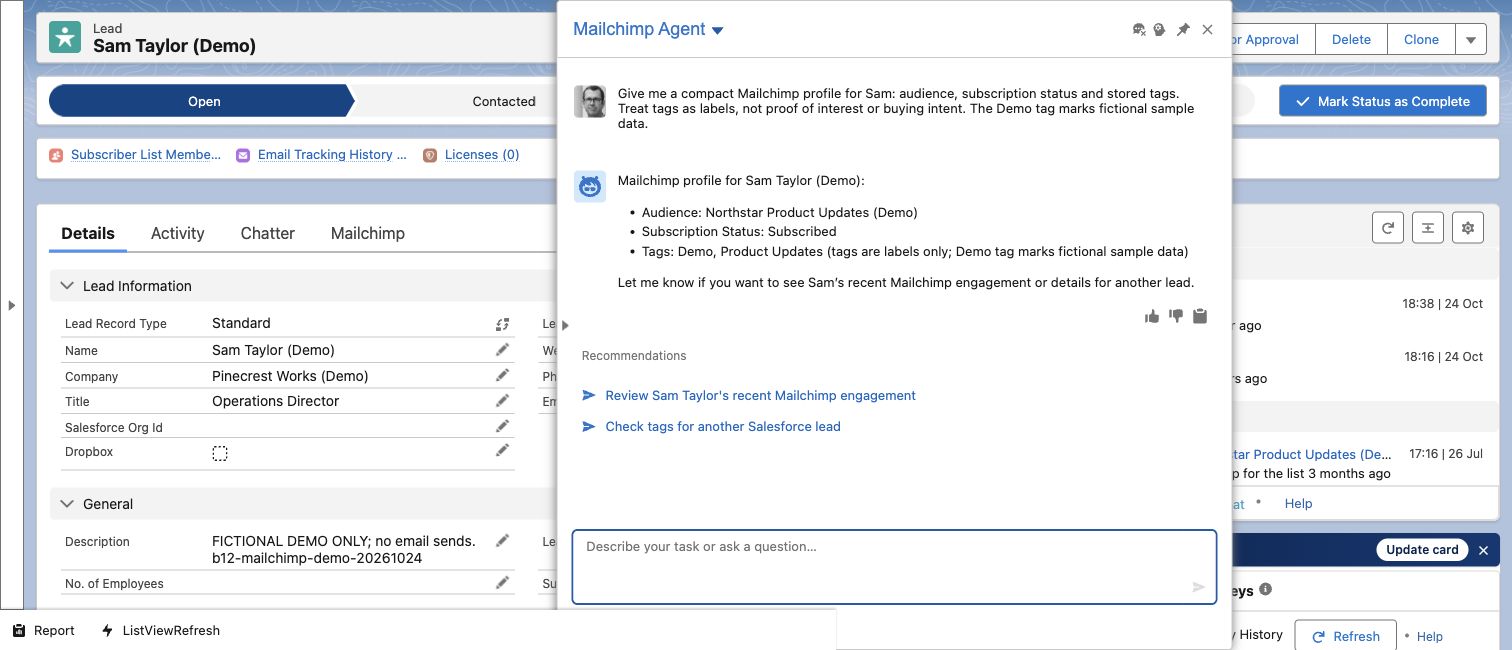
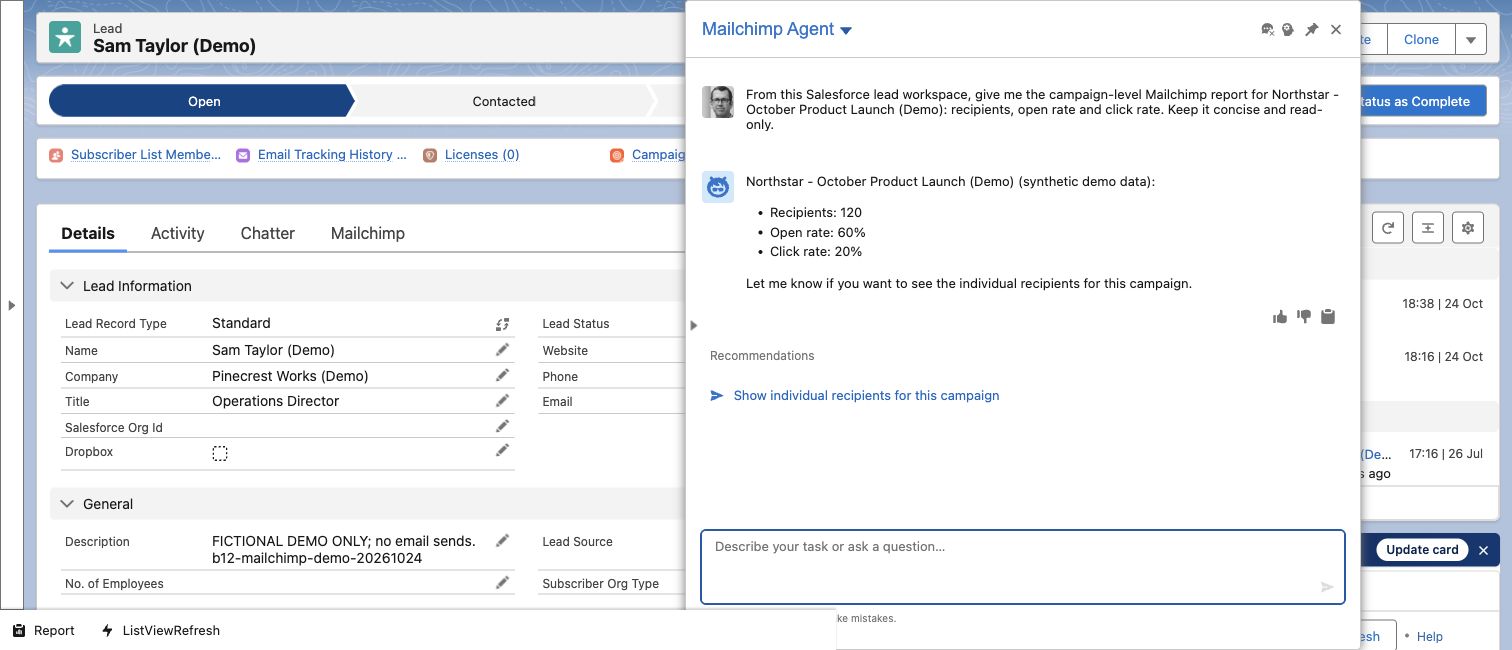
These screenshots show a configured Mailchimp Agent using fictional Salesforce records. Open an image to inspect it at full size.
A compact member profile
The agent brings together audience membership, subscription status and stored tags. Notice that it treats tags as labels, not evidence of buying intent.
A campaign-level report
The answer summarises one named campaign. Its totals describe the campaign, not the individual Lead open behind the conversation.
Troubleshooting
Use the symptom to separate connection, access and agent-configuration problems.
| What you see | What to check |
|---|---|
| Agentforce or preflight is unavailable | Check the org alias, Salesforce CLI/Agent plugin, Python 3 and jq. Confirm both packages and the separate Agentforce toggle; enabling Einstein alone is not sufficient. |
| Actions or topics are missing | Confirm Mailchimp for Agentforce is installed in this org and your package version is supported. Follow preflight output rather than assuming a fixed action count. |
| The agent cannot find a known audience or person | Check the correct audience, exact person, connection, last sync and user access. Some actions read synced Salesforce data; use a supported live lookup when a current Mailchimp status is needed. |
| The agent is missing from the panel | A local starter draft is not published or active. Check the activated version, the user’s Agent Access permission set and the user’s Salesforce Agentforce access. Refresh the session after access changes. |
| One user cannot read Mailchimp data | Check their Email Made Easy package licence, Mailchimp data permission set, Mailchimp Agent Admin and access to the relevant Salesforce records. |
| Publishing fails on a property or LightningType | A pasted template may not match the installed package schema. Use the starter’s alignment route, preserving any manual edits before regeneration. |
| A requested change fails or is blocked | Read the action result and any warning. Check the exact person/audience, permissions and subscription rules. Verify the record before retrying; do not work around an opt-out. |
| Hosted MCP connects but no tools appear | Use the separate MCP guide to check OAuth, named-user JWT settings and server configuration. If tools appear but packaged-object reads fail, check the signed-in user’s active Email Made Easy licence and reconnect. |
Still stuck? Send our team the package versions, failed step, exact error and whether one user or everyone is affected. Do not include passwords, OAuth tokens or other credentials.
Common questions
Do I need the starter if I already have an agent?
Does --draft change anything in Salesforce?
Can I use the same agent in Slack?
Can I use Claude or ChatGPT?
Are all answers live from Mailchimp?
Does adding a tag subscribe someone?
Will the agent send a campaign for me?
Do package upgrades update my customised agent?
Invocable actions
Use Mailchimp actions in Salesforce Flow.
