Who this guide is for: Salesforce admins who want to leverage Salesforce Campaign segmentation to build targeted Mailchimp email audiences
Most Mailchimp-Salesforce guides focus on pulling subscriber data into Salesforce. But if you've already built sophisticated audience segments using Salesforce Campaigns (tracking webinar registrants, product trial users, or content downloads), you need the reverse workflow. This guide shows how to push those Campaign members to Mailchimp, turning Salesforce into your segmentation engine and Mailchimp into your delivery platform.
How Salesforce-to-Mailchimp Campaign Syncing Works
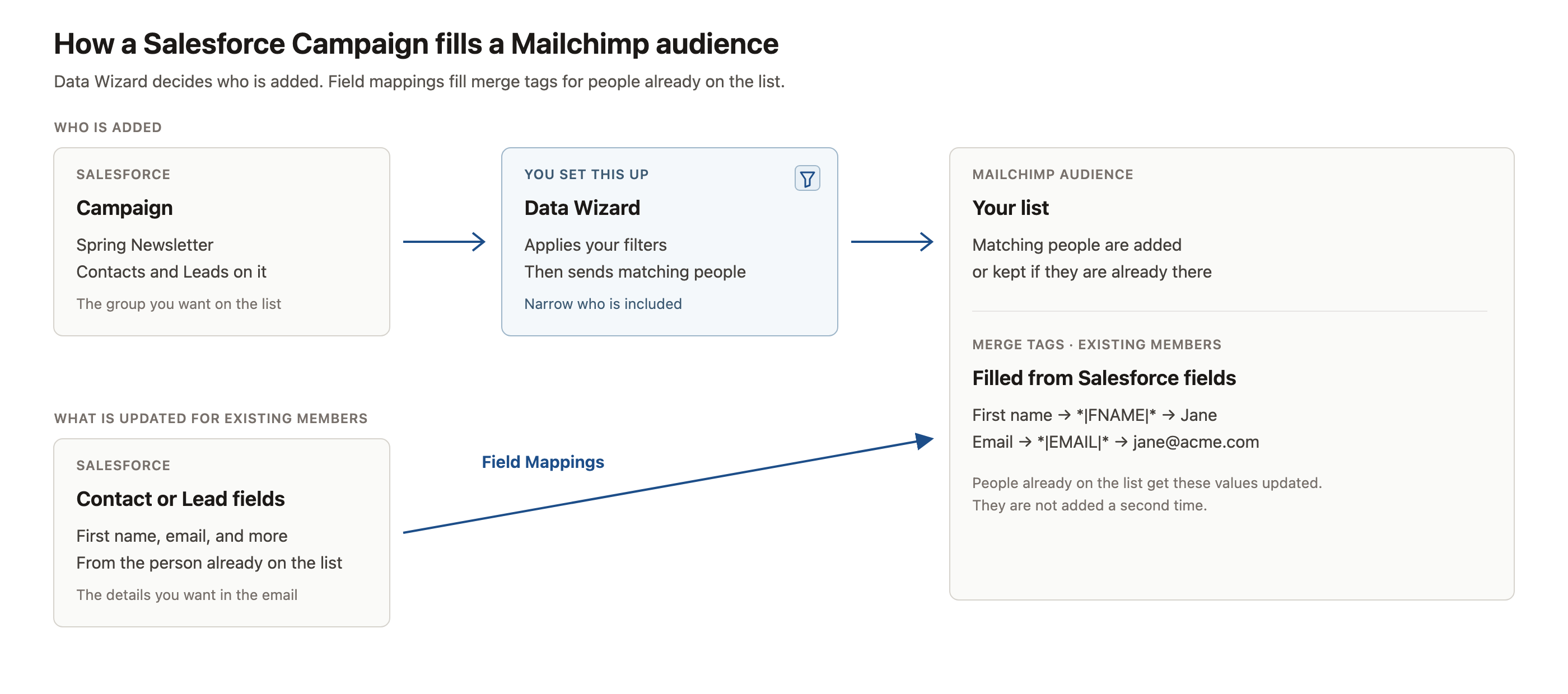
When you sync Salesforce Campaign members to Mailchimp, you're moving Contact and Lead records from a Salesforce Campaign into a Mailchimp audience. That audience then becomes the recipient list for targeted email sends in Mailchimp.
Here's where most admins hit a wall: standard field mappings in Mailchimp for Salesforce only update existing Mailchimp subscribers. If your Campaign includes a Contact who isn't already in the target Mailchimp audience, field mappings alone won't add them.
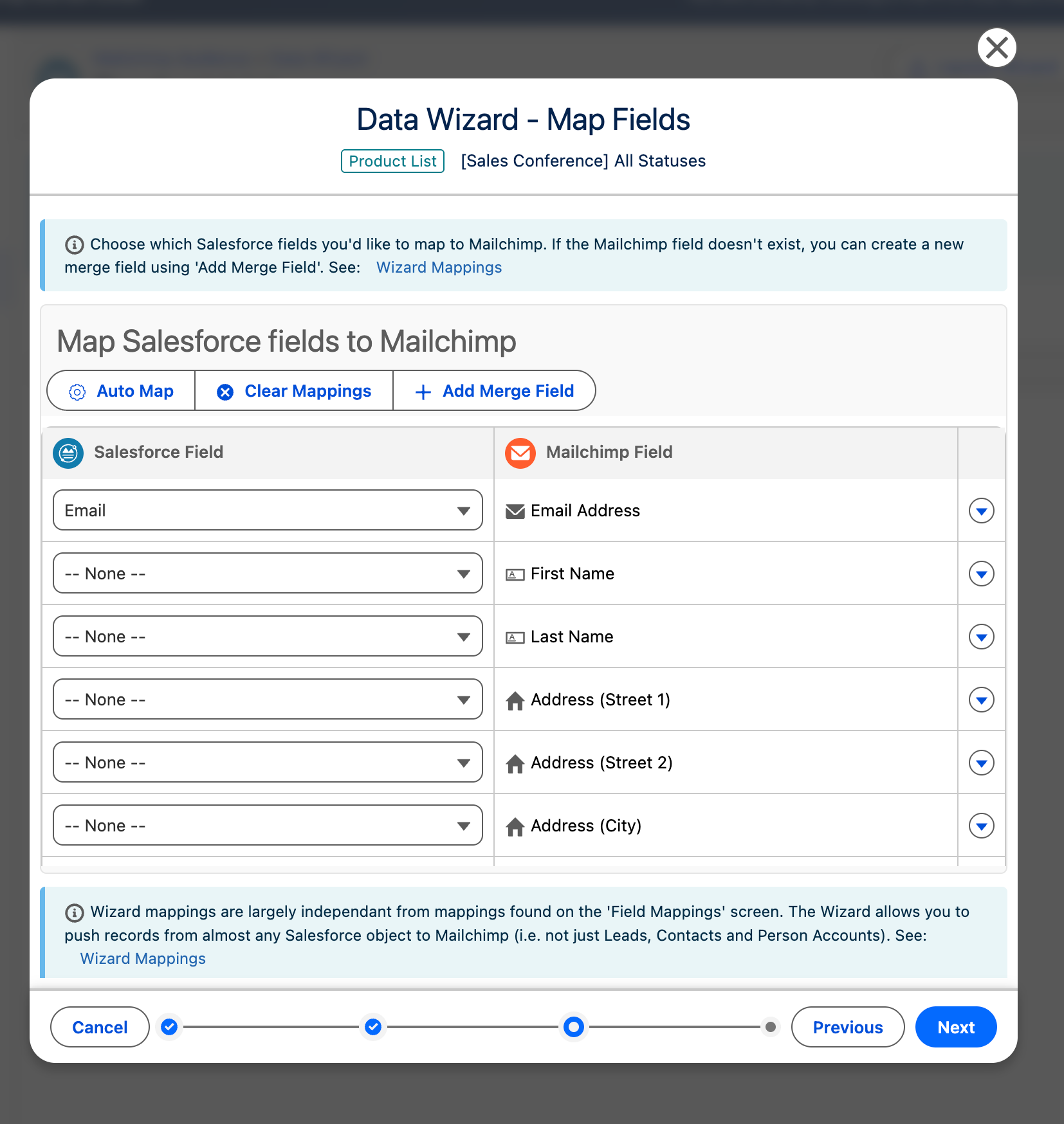
The tool that solves this is Data Wizard. It imports Salesforce records (including CampaignMembers) directly into Mailchimp audiences, creating new subscribers as needed. You set filters (like a specific Campaign ID), map required fields (email address, merge tags), and schedule the import. Once those subscribers exist in Mailchimp, field mappings keep their details current.
This approach is the reverse of syncing Mailchimp subscribers to Salesforce Campaigns. If you've already followed our step-by-step integration guide, you're halfway there: the connection is established, and you're just configuring a new sync direction.
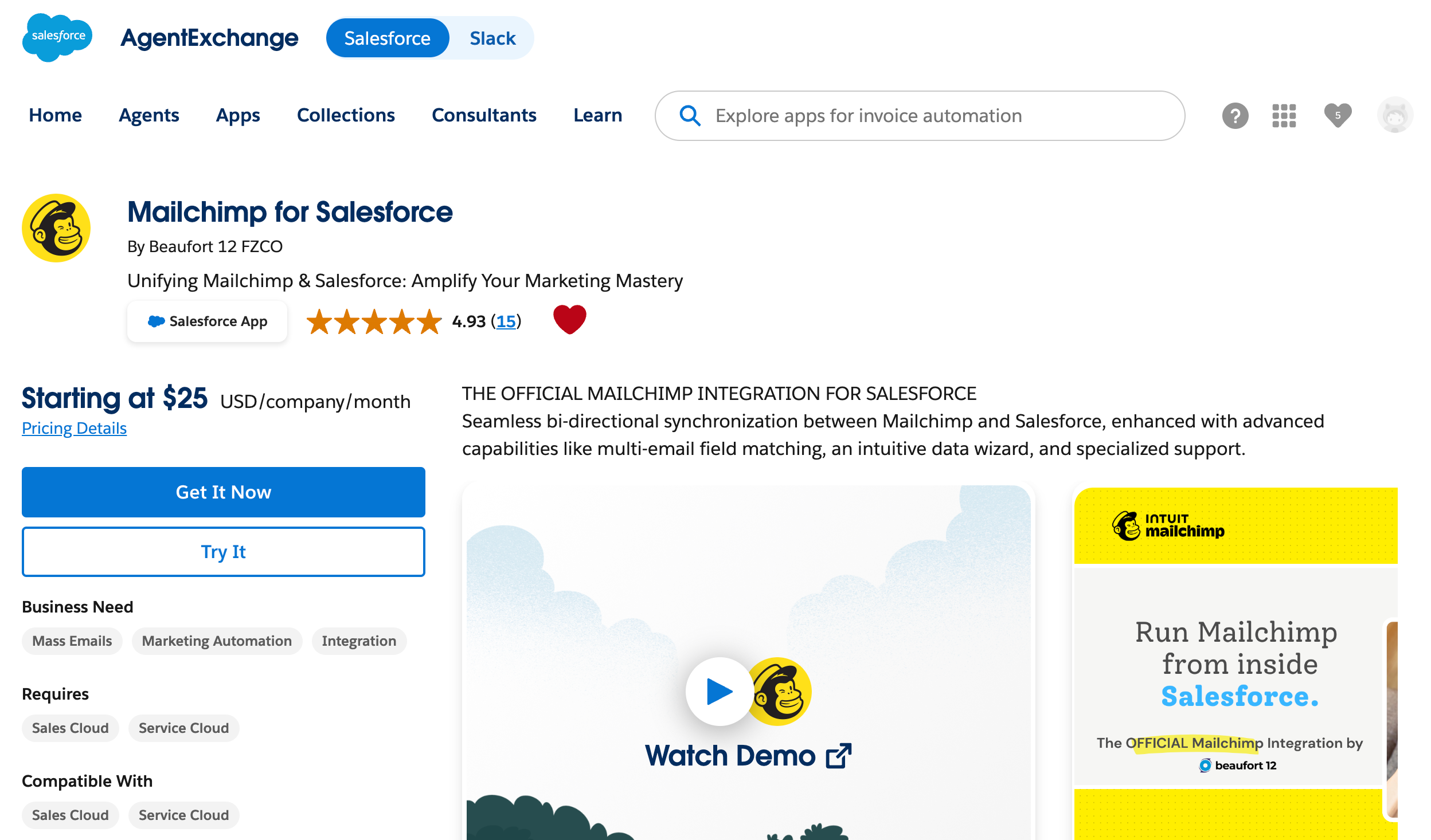
Step 1: Install Mailchimp for Salesforce from AppExchange
This is the integration Intuit officially endorsed in May 2024, replacing their earlier free plugin. A 14-day trial with all features is available in both production and sandbox.
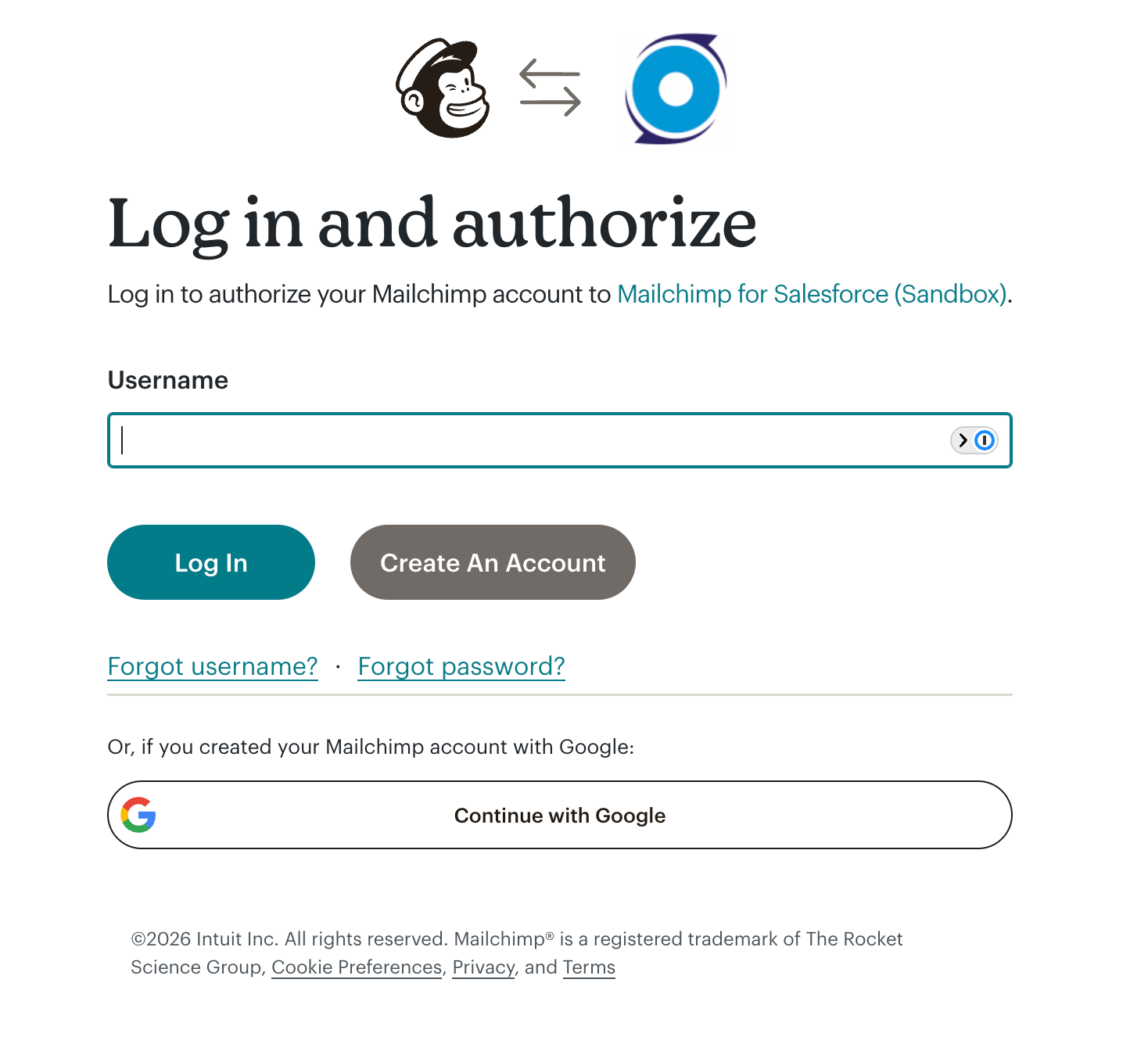
Step 2: Connect Your Mailchimp Account to Salesforce
Audience records will now appear in Salesforce as custom objects, ready for the next step.
Step 3: Set Up Campaign Member Export with Data Wizard
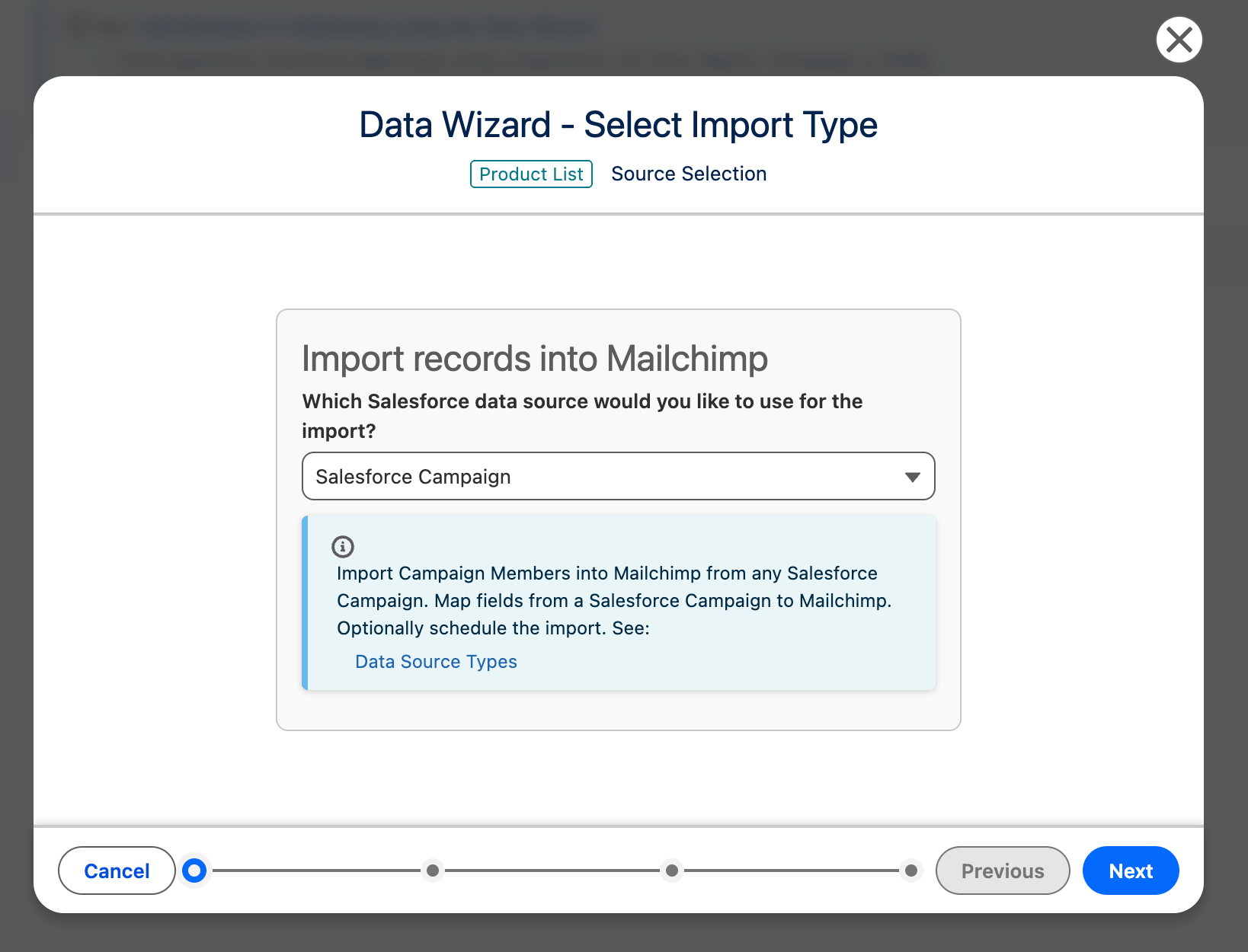
The import will run according to your schedule, creating new Mailchimp subscribers from your Salesforce Campaign members. Changes to Campaign membership trigger near real-time updates once the initial import completes.
Not sure which Campaign fields to include in your Data Wizard filters, or how to handle members in multiple Campaigns? Send us your Campaign structure and we'll suggest the optimal filter setup for your use case.
Step 4: Configure Field Mappings for Ongoing Updates
Field mappings only update subscribers created by Data Wizard. They run as part of the hourly sync, keeping Mailchimp current with Salesforce changes. If you want Mailchimp updates to flow back to Salesforce (subscriber status changes, for example), enable bi-directional sync capabilities on the Mailchimp-to-Salesforce tab.
Common Issues When Syncing Campaign Members to Mailchimp
Why aren't my Campaign members appearing in Mailchimp?
Check three things: Data Wizard filters (confirm they match your Campaign ID or name), email addresses (CampaignMembers linked to Contacts or Leads without email addresses won't sync), and import status (view the Data Wizard log to confirm the import ran). If the import succeeded but members are missing, verify they meet your filter criteria and have valid email addresses.
Why are some members marked as 'cleaned' or 'unsubscribed' in Mailchimp?
Mailchimp tracks subscription status independently for each audience. If a Contact previously unsubscribed from that audience (even years ago), Mailchimp preserves that opt-out when you re-import them. Data Wizard won't override an existing unsubscribe status. The same applies to cleaned addresses (hard bounces). Check the member's history in Mailchimp to see when and why they were marked inactive.
Can I sync the same Campaign to multiple Mailchimp audiences?
Yes. Create a separate Data Wizard import for each target audience, using the same CampaignMember source and filter. This is useful when you send different message variants to the same segment: a webinar invitation to one audience, a follow-up offer to another.
How often does the sync run?
The Data Wizard schedule controls the initial import frequency (one-time, daily, weekly). Once subscribers exist in Mailchimp, field mappings update their details in near real-time whenever you change a Salesforce record. The primary sync runs hourly, pulling Mailchimp subscriber status and engagement data back into Salesforce.
What happens when I remove someone from a Salesforce Campaign?
Removing a CampaignMember in Salesforce doesn't automatically remove them from the Mailchimp audience. They remain subscribed unless you manually unsubscribe them in Mailchimp or use an automation (via Process Builder or Flow) to update their status. If you need automatic removal, configure a scheduled Data Wizard import that overwrites the audience each time, syncing only current Campaign members.
Campaign-to-List Syncing vs Other Integration Approaches
| Criterion | Data Wizard (Campaign-to-List) | Field Mappings Only | Subscriber-to-Campaign Sync |
|---|---|---|---|
| Setup complexity | Moderate (requires filters) | Low | Low |
| Creates new subscribers | Yes | No | N/A (opposite direction) |
| Preserves Salesforce Campaigns | Yes (uses existing Campaigns) | N/A | Yes (creates Campaign records) |
| Multi-audience capability | Yes (one import per audience) | Yes | Limited |
| Update frequency | Scheduled batch + real-time | Real-time for existing members | Hourly sync |
Data Wizard excels when you need to create new Mailchimp subscribers from Salesforce segmentation. Field mappings alone are ideal for keeping existing subscriber details current without batch imports. If your goal is the reverse (tracking Mailchimp campaign engagement in Salesforce), you want to sync Mailchimp subscribers to Salesforce Campaigns instead.
Get Started with Mailchimp for Salesforce
This is Intuit's officially endorsed Salesforce integration, extending Salesforce's segmentation power into Mailchimp email campaigns. Install Mailchimp for Salesforce from AppExchange and start with a 14-day trial that includes all features. Pricing starts at $25/month based on active subscriber count.
