


In this article
If your Mailchimp account has an e-commerce store connected, such as Shopify or WooCommerce, our integration can bring those orders into Salesforce. Each order is linked to the person who placed it, so your team can see what a contact, lead or person account has bought, and which Mailchimp campaign led to the sale.
Turning on Order Sync
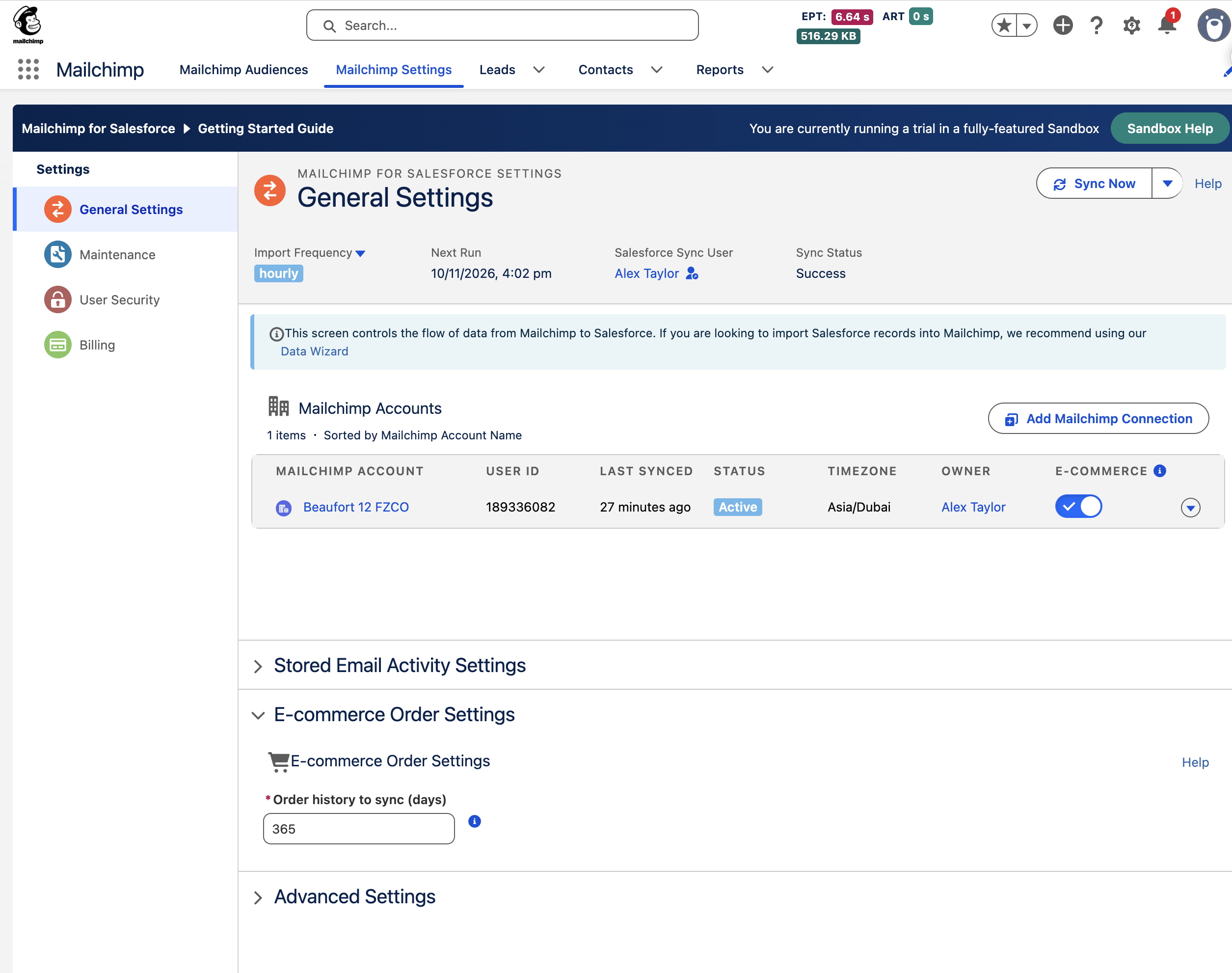
Order sync is turned on for each Mailchimp account separately. On the Mailchimp Settings tab, open General Settings and switch on E-commerce for the account in the Mailchimp Accounts table. Only Mailchimp administrators can change this setting. The first sync starts straight away and brings in your order history, which covers the last 365 days by default. You can change this to anything from 1 to 3,650 days under E-commerce Order Settings. After that, new and updated orders come across each time the primary sync runs, usually every hour. If you switch E-commerce off, future syncs stop but any orders already in Salesforce are kept. Orders are stored in three custom objects, Mailchimp Store, Mailchimp Order and Mailchimp Order Line, so you can report on them like any other Salesforce data.
Viewing Orders in Salesforce
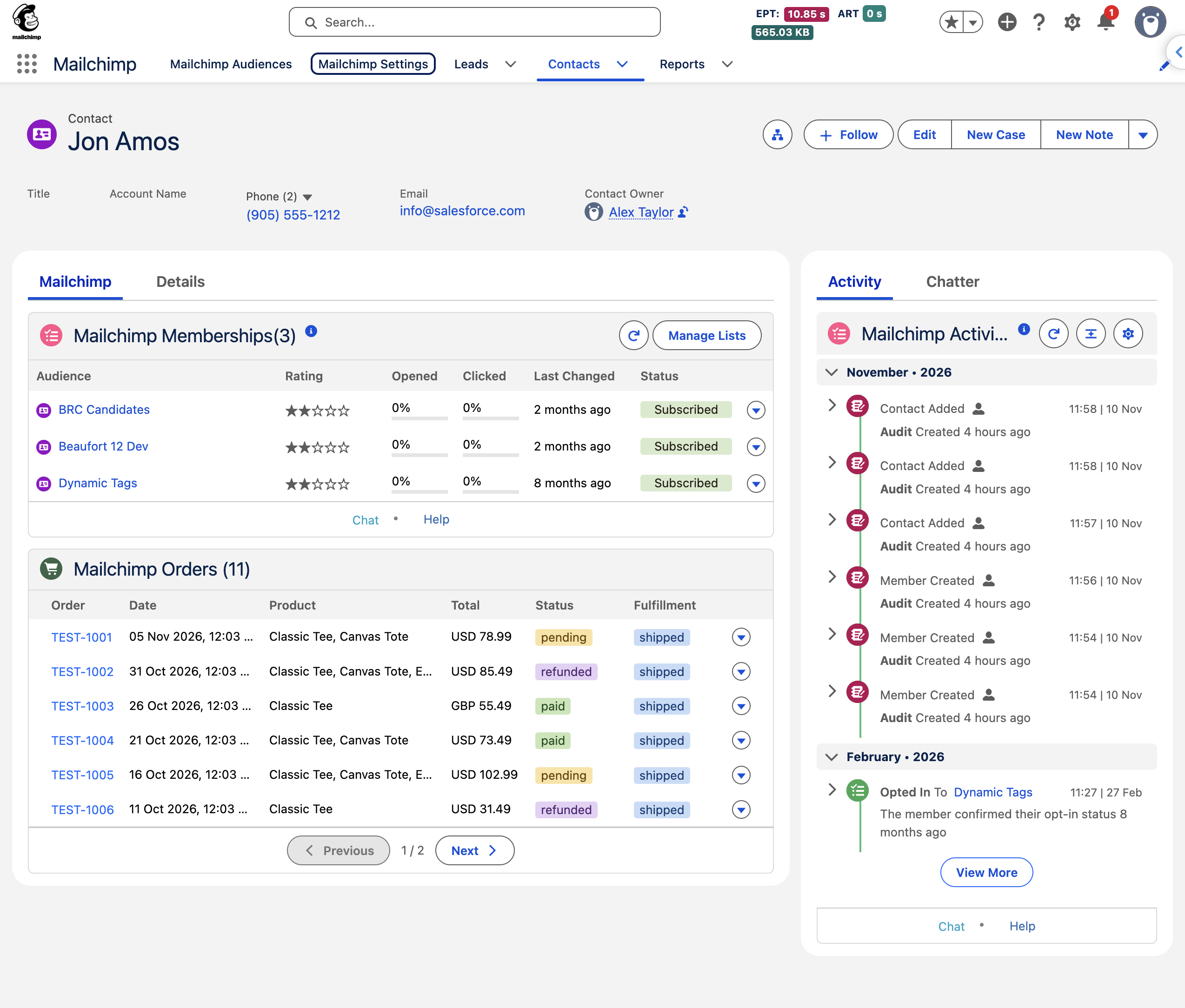
Orders are matched to people by email address. When the customer's email belongs to a member of one of your Mailchimp audiences, the order is linked to the same contact, lead or person account as that member. To show orders on a record, add the Mailchimp Orders component to your Contact, Lead or Account page in the Lightning App Builder. The automatic page layout setup doesn't add this component, so you'll need to add it yourself. The component lists each order with its date, products, total, payment status and fulfillment, and you can choose how many rows show per page. Open an order to see the Order Detail window, with the store, the items bought, tax, shipping, discounts and the campaign behind the order. View in Mailchimp takes you to the order in your store. When Mailchimp knows which campaign led to a purchase, the order also appears on the Orders tab of that campaign, so you can see the sales each email drove.
Below are the articles that we recommend reading and the best next steps.
